
How DHCP Really Works (and Where It Breaks)
Nobody ever files a ticket that says "DHCP is broken." They say the Wi-Fi is down, or the internet is broken, or "my laptop worked at home but not here." Meanwhile every graph on your monitoring dashboard is green, and every server answers pings. You are left staring at a network that is technically fine and practically useless for the person standing at your desk.
DHCP — the Dynamic Host Configuration Protocol — is the service that hands every device its IP address and the settings it needs to use the network. When it works, nobody knows it exists. When it fails, the symptoms show up everywhere except the DHCP server, which is why DHCP problems are among the most misdiagnosed failures in IT. Admins chase Wi-Fi drivers, reboot access points, and blame cables while a quiet little service sits in the corner, silently refusing to answer.
This guide gives you the mental model that makes those failures obvious. You will learn the four-step conversation every device has when it joins the network, and how leases get renewed behind the scenes. You will learn how DHCP crosses between network segments. Most usefully, you will learn which symptom each broken step produces. By the end, "my laptop says 169.254-something" will tell you exactly where to look.
In this guide
- What DHCP actually hands out
- The hotel front desk: a model that sticks
- The DORA exchange, step by step
- Renewals: the quiet background chatter
- Relays: how DHCP crosses VLANs
- Redundancy: two front desks, one guest ledger
- Where each stage breaks, and what users see
- What this means for monitoring
What DHCP actually hands out
When a device joins your network, it knows nothing. It has a hardware address (its MAC address, burned into the network card) and nothing else. It has no IP address, no idea what network it landed on, no clue how to reach the internet. DHCP exists to fix that ignorance in about one second.
A DHCP server hands out at least four things. First, an IP address — the device's number on your network. Second, a subnet mask, which tells the device which other addresses are local neighbors and which are far away. Third, a default gateway — the router address to use for everything non-local, which in practice means "the door to the internet." Fourth, one or more DNS servers, so names like mail.example.com can be turned into addresses. Servers can hand out plenty of other settings too (time servers, boot options, phone-system details), but those four are the ones every device needs to function.
Two more terms and you have the vocabulary. A scope (some platforms say "pool") is the range of addresses a server is allowed to hand out on one network. An example is 10.0.20.100 through 10.0.20.250. A lease is the loan of one address to one device for a fixed length of time. Leases are the crucial idea: addresses are borrowed, not owned, and every borrowed address comes with an expiry date. That expiry date drives almost everything interesting that happens later in this guide.
The hotel front desk: a model that sticks
Here is the analogy this whole pillar leans on, because it maps almost perfectly. Your network is a hotel. IP addresses are rooms. The DHCP server is the front desk, and the scope is the block of rooms the desk is allowed to assign. A lease is your reservation: room 214, checked in today, checkout in eight days. The front desk keeps a ledger — the lease table — recording which guest (MAC address) holds which room (IP address) until when.
The analogy earns its keep because it predicts real behavior. A hotel can run out of rooms even though the building is standing and the lights are on. That is exactly how a network with a healthy DHCP server can still turn new devices away. Two front desks assigning rooms from the same block without talking to each other will eventually put two guests in one room. That is the address-conflict disaster you will meet later. And a guest who wants to stay longer does not check out and rejoin the line. They call the desk and extend — which is precisely how lease renewal works. Keep the hotel in mind as we walk through the actual protocol.
The DORA exchange, step by step
The conversation a device has when it joins a network has four steps, and admins remember them with the acronym DORA: Discover, Offer, Request, Acknowledge. It is worth knowing each step individually, because each one fails differently.
Step 1: Discover — shouting into the lobby
The new device has no address yet, so it cannot send a polite, targeted message. Instead it broadcasts — sends a message addressed to everyone on the local network segment. It says, in effect, "I am MAC aa:bb:cc:dd:ee:ff and I need an address. Any DHCP servers out there?" In the hotel: a guest walks into the lobby and announces to the entire room that they need somewhere to stay. Undignified, but it works when you do not know where the desk is.
Step 2: Offer — the desk proposes a room
Every DHCP server that hears the Discover can answer with an Offer: "I can give you 10.0.20.31, with this mask, this gateway, these DNS servers, for this long." The server pencils the address in so it does not offer the same one to somebody else in the next instant. Note the word every. If two servers hear the shout, the client gets two offers. It will simply take the first one that arrives. That race is the entire mechanism behind rogue-server chaos, which gets its own guide in this series.
Step 3: Request — the guest says yes, loudly
The client picks an offer and broadcasts a Request: "I would like to accept 10.0.20.31 from the server at 10.0.0.5." It broadcasts on purpose, so that any other server that made an offer hears the rejection and can quietly return its penciled-in address to the pool. In the hotel, the guest announces which desk they are going with, and the other desk erases its tentative booking.
Step 4: Acknowledge — the ledger entry
The chosen server writes the lease into its table and sends an Acknowledgment (an ACK) carrying the full set of settings and the official lease duration. The client configures itself and starts using the network. The whole four-step dance usually completes in well under a second. There is also a grumpy sibling, the NAK (negative acknowledgment), which means "no — that address is not valid here, start over." You will see where NAKs come from shortly.
Seen as network traffic, the exchange looks like this. DHCP uses UDP port 67 on the server side and 68 on the client side. The client starts from address 0.0.0.0 because it literally has no address yet:
client  0.0.0.0:68  >  255.255.255.255:67   DISCOVER  "anyone? MAC aa:bb:cc:dd:ee:ff"
server  10.0.0.5:67 >  255.255.255.255:68   OFFER     "how about 10.0.20.31, 8 days?"
client  0.0.0.0:68  >  255.255.255.255:67   REQUEST   "accepting 10.0.20.31 from 10.0.0.5"
server  10.0.0.5:67 >  255.255.255.255:68   ACK       "done: mask, gateway, DNS enclosed"
The figure below shows the same conversation with one extra participant you will meet in a moment — the relay — and marks the classic points where the exchange goes wrong.
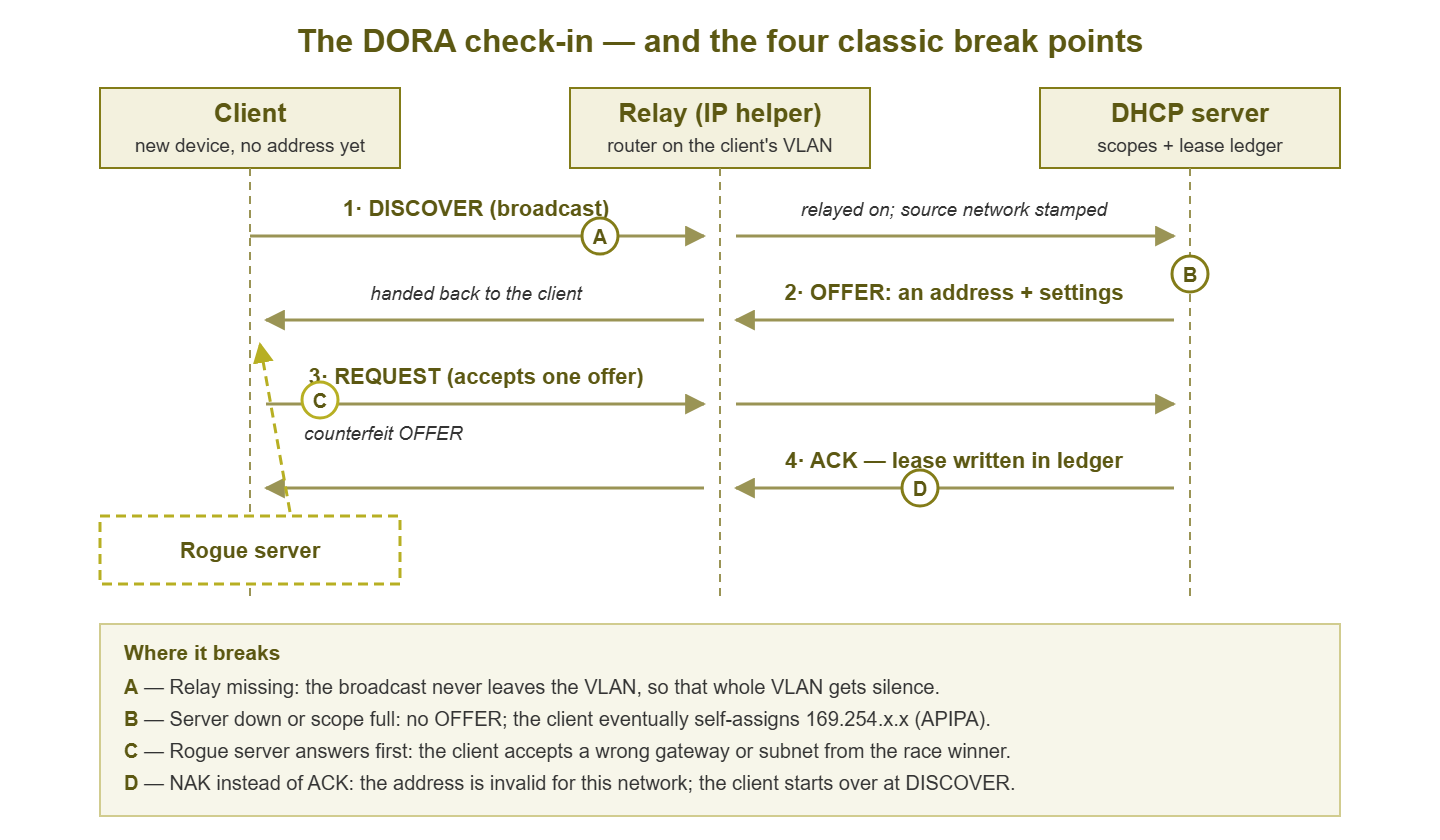
Figure 1: The DORA exchange, with the four classic break points. When nothing answers at all, the client gives up and invents a 169.254.x.x address for itself.
Renewals: the quiet background chatter
A lease has an expiry date, but devices do not wait until checkout time and then scramble. The protocol builds in two gentle timers, called T1 and T2. You do not need to memorize the details, but knowing they exist explains a lot of otherwise-mysterious traffic in your logs.
T1 fires halfway through the lease. At that point the client contacts the server that gave it the lease. It does so directly and politely this time, with no broadcasting, because it knows exactly who to call. It asks to renew: "I am still using 10.0.20.31, may I keep it?" The server almost always says yes, resets the clock, and life goes on. This is the guest phoning the front desk from their room to extend the stay. On a healthy network, the vast majority of DHCP traffic is exactly this: quiet, unicast renewals that succeed.
T2 is the fallback, firing at roughly the seven-eighths mark of the lease. Suppose the client has been trying to renew since T1 and its server has never answered — maybe that server is down. The client gets nervous and goes back to broadcasting: "any server, please, I am at 10.0.20.31 and my lease is running out." Any server that knows about that network can rescue it. In the hotel, the desk has stopped answering the phone, so the guest goes down to the lobby and asks anyone official-looking to extend the reservation.
If even that fails, the lease expires, and the rules are strict: the client must stop using the address entirely and start over from Discover. This is why a dead DHCP server produces such a strange, slow-motion outage. Nothing happens at first — everyone already has a lease. Then devices hit their expiry times one by one, drop off, and cannot get back on. The network dies alphabetically by lease date, over hours or days, and the tickets trickle in a pattern that makes no sense until you know this mechanism.
Tip: on a Windows machine, ipconfig /all shows the lease's start and expiry time and — goldmine — the address of the DHCP server that granted it. When something smells wrong, that one line tells you which server actually answered. If it is an address you do not recognize, you have just found a rogue server.
Relays: how DHCP crosses VLANs
There is a catch hiding in step one of DORA. Broadcasts only travel within the local network segment. A VLAN (virtual LAN, one isolated slice of your network) is exactly such a segment. Routers do not forward broadcasts between them. Taken literally, that would mean every VLAN needs its own DHCP server in the room to hear the shouting. Nobody wants to run fifteen DHCP servers.
The fix is the DHCP relay, a small function you switch on at each VLAN's router interface (many vendors call the setting an "IP helper" address). The relay listens for DHCP broadcasts on its local segment and converts each one into a normal targeted packet. It forwards the packet across the routed network to your real DHCP server, stamping it with the address of the network it came from. That stamp matters enormously: it is how one central server knows which scope to allocate from. A request stamped "from the 10.0.30 network" gets an offer from the 10.0.30 scope. The server's reply travels back to the relay, and the relay passes it to the client as if the server were local.
In hotel terms: the branch building has no front desk of its own, just a concierge with a phone line to the main desk. The concierge relays your request and mentions which building you are standing in. That is how the desk knows to book you a room in that building. The concierge hands you back the key that arrives. It works beautifully, and it adds a new way for things to break. If the concierge quits (a relay is missing or misconfigured on some VLAN), every new device on that VLAN shouts into a void. Meanwhile, the server sits perfectly healthy two hops away, hearing nothing. Whole-VLAN silence with a green server is the signature of a relay problem.
Redundancy: two front desks, one guest ledger
One DHCP server is one point of failure, so mature networks run two. There are two general approaches, and both exist on most platforms under various names. The first is splitting the scope. Two independent servers each own a slice of the same address range — commonly a large slice on the primary and a small slice on the backup. Both answer Discovers. Clients take whichever offer arrives first; if the primary dies, the backup's slice keeps new devices alive. It is simple and robust, at the cost of some address space held in reserve.
The second is a true failover pair: two servers that share one scope and continuously synchronize the lease ledger. That way, either can renew a lease the other granted. This is the two-front-desks-sharing-one-ledger model, and it is the more comfortable place to be — provided the synchronization link itself is monitored. A failover pair that silently stopped syncing is redundancy theater. What you must never do is run two servers with overlapping ranges and no coordination. Each keeps its own ledger, neither knows what the other handed out, and sooner or later two devices hold the same address. Address conflicts produce some of the weirdest intermittent symptoms in networking, and they are self-inflicted.
Where each stage breaks, and what users see
Now the payoff. Because each DORA stage fails differently, the symptom on the user's screen points at the broken stage — once you know the mapping. Here it is in one table.
| What broke | Stage | What the user experiences | The telltale sign |
|---|---|---|---|
| Server down, or scope completely full | No Offer | New and returning devices cannot get online; established ones fine (until leases expire) | Self-assigned 169.254.x.x address |
| Relay missing or broken on one VLAN | Discover never arrives | One entire VLAN or site cannot join; everywhere else is fine | 169.254.x.x, but only in one network area |
| Rogue server answering | Wrong Offer wins | Random devices get wrong gateway or subnet; symptoms move around as the race is won and lost | ipconfig /all shows an unfamiliar DHCP server |
| Client moved networks, asks for its old address | NAK at Request | Brief hiccup, usually self-heals as the client restarts DORA | NAK entries in server logs |
| Server dead for a long time | Renewals fail, leases expire | Devices drop off one by one over hours; nothing new can join | Slow trickle of outage tickets, oldest leases first |
The star of that table deserves a proper introduction. When a device broadcasts Discover several times and hears absolute silence, most operating systems fall back to APIPA (Automatic Private IP Addressing). They invent themselves an address in the reserved 169.254.0.0/16 range. You will also hear "self-assigned address" or "link-local address" for the same thing. An APIPA address comes with no gateway and no DNS, so the device can technically chat with immediate neighbors and do nothing else. To the user this reads as "connected to Wi-Fi but no internet," which is why any address starting with 169.254 is a flare that says DHCP got no answer. Not a Wi-Fi problem. Not a cable problem. The Discover went out and nothing replied — your job is to find out why: server dead, scope empty, or relay broken.
The wrong-subnet case is sneakier. The device did get a lease — from the wrong place, or from the right server's wrong scope thanks to a relay stamped with the wrong network. It has an address, so nothing looks self-assigned, but the gateway is unreachable or belongs to a different network entirely. The user says "it connects but nothing loads," and the fix starts with reading which server and gateway the device was actually given rather than assuming.
What this means for monitoring
Every failure in that table is detectable before users feel it — that is the point of this whole pillar. The lease ledger can be watched, so you know when a scope is filling before it turns people away. And scope exhaustion gets its own guide because it is the most common and most misdiagnosed of the lot. The server itself can be checked in ways that go beyond "does it ping." These include the gold-standard trick of having a test client actually perform DORA on a schedule, covered in monitoring DHCP itself. The logs of Discovers, ACKs, and NAKs are a running census of your network, and reading lease churn shows you how to mine them. And the offer race that rogue servers exploit can be hunted and fenced off, as covered in rogue DHCP detection and prevention.
If you take one habit from this guide, make it this. When someone reports a connection problem, get the device's actual configuration first — address, gateway, DHCP server, lease times. Then read it against the table above. Thirty seconds of looking replaces an hour of guessing.
Where to go next
You now have the model: a front desk, a ledger of leases, a four-step check-in, quiet renewals, and concierges relaying requests between buildings. You also have a known list of ways each piece fails. Everything else in this pillar builds on that foundation. The natural next read is the scope exhaustion guide, because a full pool is the DHCP failure you are most likely to meet this year. The rest of DHCP: The Service Everyone Forgets covers the logs, the rogues, and the monitoring that keeps all of it honest. For the broader picture of what else deserves a check on day one, the Network Monitoring Fundamentals pillar is the place to start.
Put this into practice with SysPeep Monitor
Understanding DHCP is half the job; noticing the moment it misbehaves is the other half. SysPeep Monitor discovers the devices on your network automatically and watches your servers and services over SNMP, WMI, and SSH. That way, a DHCP server that stops answering shows up as an alert, not as a lobby full of confused users. The free trial installs on any Windows machine in minutes.
Download Free TrialLearn About SysPeep - All Rights Reserved.