
A Safe Firmware Upgrade Procedure for Network Gear
Two admins copy the same image to the same model of switch and reboot it. One goes home at half past eleven. The other is still there at five in the morning, on the phone to the vendor, with a console cable and a box that will not boot. The difference is almost never luck, and almost never skill. It is procedure. Was the config backed up somewhere readable? Was the rollback path known before it was needed? Had anyone written down what "working" looked like beforehand so they could tell whether it still did afterward?
This guide is the procedure piece of this topic, and its goal is to make your upgrades boring. Boring means the window ends early, the verification list comes up clean, and the most dramatic moment is choosing which snack to open during the reboot. Deciding whether a given update is worth taking is a separate judgment, covered in when to update firmware. This page begins after that decision, when a version is chosen and a device is waiting.
By the end you will have a full checklist you can print. It covers the pre-flight work in the week before and the execution rhythm during the window. It covers a verification ladder that proves the upgrade worked, and pre-agreed triggers that take the emotion out of rolling back. It covers the wave pattern for upgrading a whole fleet without betting it all on one night.
In this guide
- Why boring is the goal
- Pre-flight: the week before
- Upgrade night: the execution rhythm
- The verification ladder
- When it goes wrong
- Upgrading a fleet in waves
- The printable checklist
Why boring is the goal
Upgrade anxiety comes from unknowns: will it boot, will the config survive, what if it doesn't, how would I even get back? A procedure works by converting every one of those unknowns into a step with an answer written next to it. Once the answers exist on paper, the upgrade stops being a leap of faith and becomes a sequence — and sequences are checkable, repeatable, and calm. Every section below exists to retire one specific fear before the window opens.
The two classic ways upgrades go wrong are both procedure failures wearing other costumes. The improviser starts the upgrade first and answers questions as they arise — which works right up until the question is "why won't it boot?" at 1 a.m. The optimist prepares nothing because the last five upgrades were fine — which is exactly how the sixth one gets its audience. The checklist is the antidote to both, and it costs about an hour of daylight.
Pre-flight: the week before
Nearly all of a safe upgrade happens before anyone touches the device. Budget an unhurried hour or two, days ahead, for the following.
Read both documents
There are usually two, and people read only the famous one. The release notes tell you what changed. The upgrade notes (or upgrade guide) tell you how to get there safely — and this is where the traps live. Two matter most. First, upgrade-path requirements: some jumps cannot be made directly, and the vendor requires a stepping-stone. For example: "to reach 5.0 from anything before 4.6, upgrade to 4.6 first". Discovering that mid-window turns one reboot into three. Second, config-conversion warnings: major versions sometimes rewrite the configuration format on first boot, occasionally renaming or dropping settings. If the notes mention conversion, plan extra verification time and read exactly what changes.
At Tollgate Foods the upgrade notes for the distribution switches had a box near the top. It said anything on the older train had to go through an intermediate release first. Nobody read the upgrade notes, because the release notes were the famous ones and those had been read twice. The first switch took the image, rebooted, and did not come back. The second switch was not attempted, which was the one good decision of the night. The window had been booked for two hours starting at two. The vendor's recovery procedure finished a little after five, with a console cable, a TFTP server, and a warehouse shift waiting outside the door. The notes now get read first, by two people, and the intermediate step has its own line on the checklist.
Verify the image
Confirm the image file is for your exact model and the train you intend — many product families ship near-identical file names for different hardware revisions. Then verify the checksum: a fingerprint (a long hexadecimal string) the vendor publishes for each file. You compute the same fingerprint on your copy and compare; if they match, your file is bit-for-bit what the vendor published:
sha256sum switch-4.2.9.bin
9f1c...e77a  switch-4.2.9.bin   # must match the vendor's published value
This is not paranoia theater. A firmware image that gets truncated or corrupted in transit can flash successfully and then fail to boot. And a switch that no longer boots is a brick, recoverable only through slow rescue procedures, if at all. Ten seconds of checksum beats an evening of recovery-mode archaeology. The same step is your supply-chain hygiene: download images only from the vendor's official source, never from a forum mirror or a helpful stranger's file share. You are about to make this code the operating system of your network.
Back up the config — and prove the backup
Export the device's full configuration to somewhere off the device, then open the file and read it. Not glance — read: does it contain the whole config, including the certificate or key material the platform exports separately? A zero-byte file or a truncated export discovered during a rollback is a special kind of despair. The principle is the same one behind checking on your safety nets generally. A backup you have never opened is a hope, not a backup (a theme the Monitoring the Monitor guides develop properly). While you are there, save the device's license and activation details too; some platforms want them re-entered after a downgrade.
Know your rollback before you need it
This is the step that most changes how the night feels. Find out, now, how this specific device goes backward. Much modern gear is dual-image (or dual-partition): it keeps two firmware slots and upgrades into one while preserving the other. It can boot the previous image on demand — sometimes automatically if the new image fails to come up. If that is your hardware, learn the exact command or boot-menu step that selects the fallback image. In that case, also confirm the current, known-good image occupies the other slot. There are few comforts in IT like a golden previous image one command away.
Single-image gear demands more respect: the road back is a downgrade (flash the old version over the new) or a recovery procedure. Read that recovery procedure before the window, not during it — it typically involves a console cable, a TFTP server, and patience. And confirm your console access actually works today. Check that the serial cable reaches and the terminal settings are known. If the device is at another site, check that whatever out-of-band path you rely on has been tested this month. A rollback plan you cannot reach is decoration.
Size the window honestly
Add up the real components: image transfer, the upgrade itself, and the reboot (some chassis take many minutes to fully converge). Add config conversion if any, and your entire verification ladder. And add the piece everyone omits: time to execute a full rollback if verification fails. Then apply the ×2 rule: schedule twice your estimate. If it goes well you finish embarrassingly early, which harms nobody. If it goes badly, the margin is what lets you roll back calmly instead of negotiating with the morning. Announce the window, get it agreed, and treat its boundaries as promises. The full etiquette of scheduling and communicating maintenance lives in our guide to planned downtime.
Pick the canary
Never introduce a new firmware version to your whole fleet at once. Choose one canary: a representative, low-stakes device — same model and role as the fleet. But choose the one whose bad evening would inconvenience the fewest people. That might be the lab switch, the small branch, or the access switch by the storage room. The canary goes first and then soaks: runs the new version for days while you watch for anything odd. Only after a clean soak does the fleet follow, in waves. The full wave pattern is below; the pre-flight task is simply naming the canary and putting its window first.
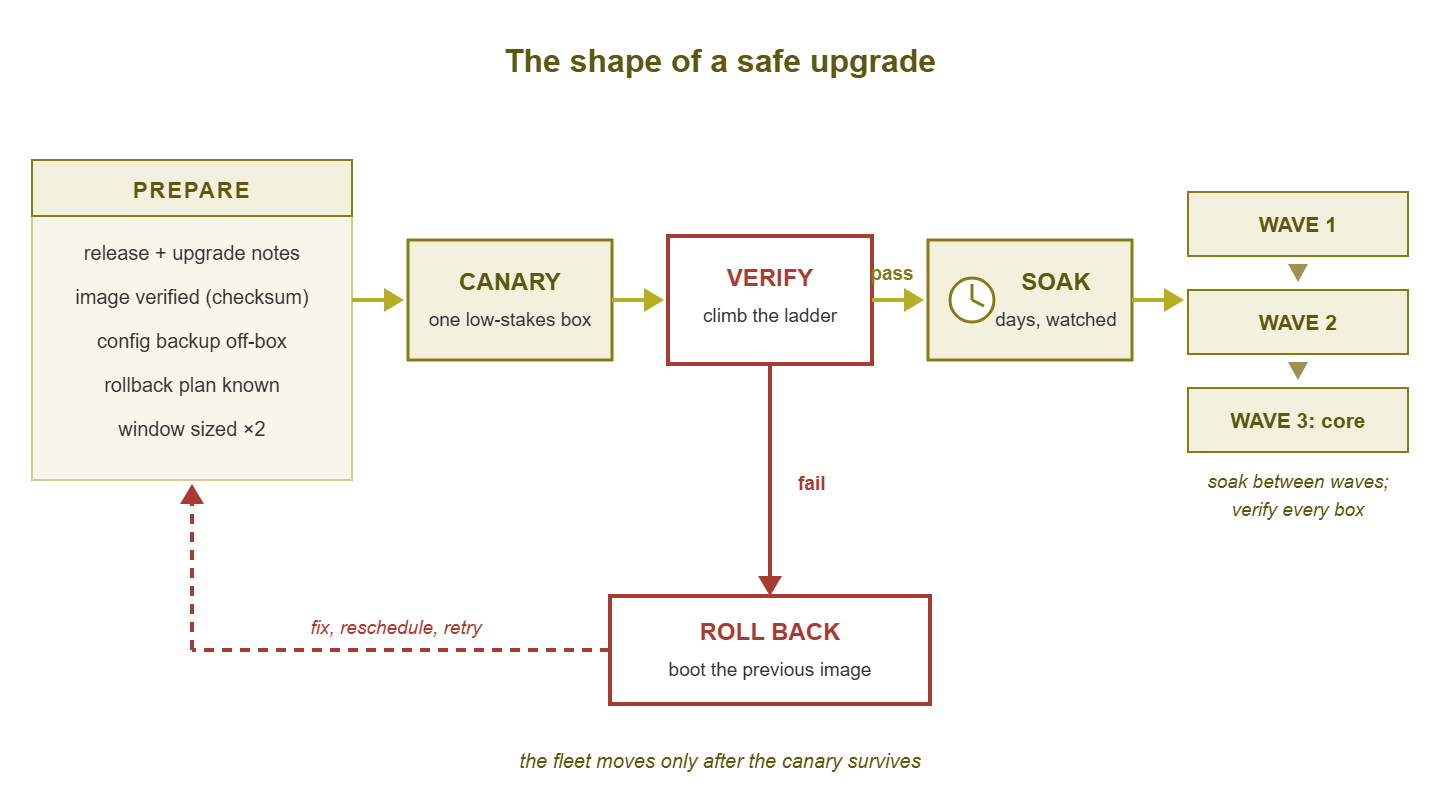
Figure 1: The shape of a safe upgrade. The fleet only moves after the canary passes verification and survives the soak. And a failed verification exits through the rollback loop, not through improvisation.
Upgrade night: the execution rhythm
The window opens. The rhythm from here is deliberate and slightly ceremonial, which is exactly how you want it.
Suppress monitoring — deliberately and scoped. Tell your monitoring system this device is in maintenance, so the reboot does not page anyone or pollute your availability stats. Scope it: this device (and things that depend on it), this window, nothing more. And write the un-suppress step into the runbook as its own line. A suppression that outlives the window is how the next real outage goes unnoticed. (The craft of doing this well is its own subject; see Maintenance Windows & Alert Suppression.)
Take the before-picture. This is the technique that makes verification objective instead of a matter of feel. Before touching anything, capture the device's current state to files: software version, running config, interface status summary, neighbor table, routing summary, counts of anything countable. Save the answers, not your memory. Exact commands vary by platform — the idea does not (your terminal client's session-logging feature is a fine way to capture it all):
# the before-picture: capture current state to files
show version                     # current image, uptime
show running-config              # full config text
show interface brief             # which ports are up
show lldp neighbors              # who we are connected to
show ip route summary            # how many routes we hold
Twenty interfaces up, fourteen LLDP neighbors, two default routes: those numbers are about to become your definition of "working." After the reboot you will run the same commands and compare. That is a diff against reality, not memory, at one in the morning, when memory is at its least trustworthy.
Transfer the image and verify it again on-device. Copy the image to the device, then use the platform's own verify command (most have one) to check the image's integrity as stored on the device. The copy operation is one more place corruption can sneak in, and this is the last exit before flashing.
Upgrade, reboot, and watch. Start the upgrade, and for any device you would hate to lose, watch the reboot over the console rather than waiting blind on ping. The console shows the boot sequence narrating itself — image loading, config conversion, complaints. If something goes wrong, the console message is your diagnosis, versus a silent box and a guessing game. For remote gear this is precisely what out-of-band access exists for. Then resist the urge to declare victory when the login prompt returns: the ladder decides, not the prompt.
Warning: do not multitask the window. The nights that go wrong are so often the nights someone was upgrading two things at once and lost track of which box was in which state. One device, one checklist, one state in your head at a time.
The verification ladder
Verification runs bottom-up, each rung assuming the one below it. Climb in order and you cannot fool yourself:
| Rung | Check | Passes when |
|---|---|---|
| 1. Boot | Device is up on the intended image | show version reports the new version, from the right slot |
| 2. Config | Configuration survived (or converted correctly) | Diff of running config against the backup shows only expected changes |
| 3. Topology | The network looks like the before-picture | Interface, neighbor, and route counts match the saved outputs |
| 4. Traffic | Real work flows | A user-level test succeeds through the device — a client gets an address, reaches a service, VPN tunnel rebuilds |
| 5. Monitoring | The watchers agree | Suppression lifted, and every check on the device returns green |
Rung 3 is where the before-picture earns its keep. "Nineteen of twenty interfaces up" is a finding. The missing one has a name you can chase right now instead of a ticket appearing on Thursday. Rung 4 keeps you honest at the level users experience. A device can be up in every technical sense while a broken feature quietly severs something people need. And rung 5 closes the loop you opened at the start of the window: monitoring re-enabled, dashboard green, in writing.
When it goes wrong
Sometimes the ladder breaks under you, and what happens next should have been decided days ago. Agree the rollback triggers in pre-flight, write them into the runbook, and honor them like contracts:
- The device does not boot, or boot-loops, on the new image.
- The config did not survive conversion — the diff shows mangled or missing sections that matter.
- A critical feature is demonstrably broken and no fix is one known step away.
- The time budget is spent: you have reached the point in the window where a full rollback still fits before it closes.
That last trigger is the one that saves careers. Debugging is a swamp with no clocks in it; the runbook is your clock. When a trigger fires, you do not troubleshoot harder — you execute the rollback you rehearsed. Boot the fallback image on dual-image gear, or run the downgrade path you read about on single-image gear. Restore the config from the backup you proved readable, and climb the same verification ladder on the old version. Rolling back is not failure; it is the procedure working. The network is whole, everyone sleeps, and the new version waits.
Afterward, hold a small post-mortem with yourself: what broke, and — the sharper question — what should the canary have caught? If the failure was version-specific, the canary did its job by being the only casualty. If the failure was procedural (unreadable backup, unknown recovery path, missed upgrade-path requirement), the fix belongs in the checklist so the lesson is paid for exactly once.
Upgrading a fleet in waves
For a fleet of similar devices, the canary pattern extends into waves. After the canary soaks clean for a few days, wave one takes a small batch — a handful of boxes, still weighted toward lower-stakes roles. Another soak of days, watching monitoring and listening for odd tickets. Then come the remaining waves, growing in size and confidence. The highest-stakes devices (core, data center) go deliberately last, once the version has proven itself broadly on your network. Between waves, the soak is the point. Some regressions need days of uptime, a weekly batch job, or a rare traffic pattern to surface. Spacing is what gives them the chance to appear cheaply.
Size each batch by one constraint: it must be small enough that you could roll every box in it back within the same window if the wave goes wrong. Grouping by site or closet also pays — one trip, one announcement, one set of affected users. And identical devices in a batch can share a single prepared runbook with only the hostnames changing.
The finish line for the fleet is version consistency: every device of a model on the same release. Consistency is what makes the fleet predictable — one behavior to learn, one set of bugs to know, one upgrade path next time. Track the stragglers (the box that was down that night, the site that got skipped) in your firmware inventory. Its drift view exists precisely to catch the wave that never quite finished. Fold the stragglers into the next window until the drift reads zero. A wave that is nearly finished stays nearly finished until somebody books the last window.
The printable checklist
Everything above, compressed into the version you tape to the monitor:
| Pre-flight (the week before) |
|---|
| Release notes read; known issues checked against features you use |
| Upgrade notes read; upgrade path and config-conversion warnings noted |
| Image for exact model/train; checksum verified against vendor value |
| Config (plus licenses/keys) backed up off-box; backup opened and read |
| Rollback path known: fallback image confirmed, or recovery procedure read; console access tested |
| Window scheduled at ×2 estimate and announced; canary named and first |
| Execute (during the window) |
|---|
| Monitoring suppressed — scoped to the device and window |
| Before-picture captured: version, config, interfaces, neighbors, routes |
| Image transferred and verified on-device |
| Upgrade started; reboot watched on console where stakes warrant |
| Verify (the ladder, in order) |
|---|
| Boots on the intended version |
| Config diff against backup shows only expected changes |
| Interfaces, neighbors, routes match the before-picture |
| User-level traffic test passes |
| Monitoring un-suppressed and all checks green |
| Rollback (pre-agreed) |
|---|
| Triggers: no boot / config mangled / critical feature broken / time budget reached |
| Action: boot fallback image or execute downgrade path |
| Restore config from the proven backup; re-climb the ladder on the old version |
| Post-mortem: what should the canary or checklist have caught? |
Where to go next
Boring is built, not hoped for. The upgrade that ends at half past eleven and the one that ends at five in the morning started with the same image and the same reboot. The first one also had a backup somebody had opened, a rollback somebody had rehearsed, and a before-picture to compare against. Do the hour of daylight work, climb the ladder in order, and honour the triggers you agreed when you were calm. The most dramatic moment of the night should still be the snack.
A procedure is one leg of a firmware practice. The firmware inventory tells you what each box runs and feeds the wave plan. The guide to when to update firmware decides which releases deserve a window at all. And the rest of Firmware & Lifecycle Tracking extends the same discipline out to end-of-life dates and replacement planning. Run the checklist a few times and the word "upgrade" loses its adrenaline.
Put this into practice with SysPeep Monitor
Half of this procedure is knowing what the device looked like before and whether it is healthy after. SysPeep Monitor keeps that picture for you. It polls your gear over SNMP, WMI, and SSH, and shows status on live dashboards. Its alerting confirms the moment everything is green again after a window. The free trial installs on a Windows machine in minutes.
Download Free TrialLearn About SysPeep - All Rights Reserved.