
Storage on the Network: iSCSI, NAS, and SAN in Plain Language
Somewhere on your network right now there is traffic that is not like the rest. It is not a web page loading or an email heading out the door. It is a server's disk drive — except the disk is not inside the server. The data lives in a storage box across the room, and every read and write travels over Ethernet to reach it. When that traffic slows down, applications do not get a little sluggish the way a website does. They stop, mid-sentence, and wait.
If you have inherited a virtualization host or a shelf of shared folders, you have inherited storage networking. The same goes for a mysterious pair of switches nobody is allowed to touch. Usually, nobody explains it. The acronyms arrive in a pile: iSCSI, NAS, SAN, LUN, initiator, target. They sound like alphabet soup, but the ideas underneath are genuinely simple. Once you see them, the strange rules around storage traffic ("never put anything else on that VLAN!") stop being superstition. They start being obvious engineering.
This guide explains block and file storage with one analogy you can keep forever. It decodes iSCSI, NAS, and SAN without vendor fog. It shows why storage traffic behaves unlike anything else you carry, and makes the case for giving it a lane of its own. It also gives you a short list of what to watch for each storage type. So you can start monitoring what you have inherited instead of just fearing it.
In this guide
- Block vs. file: renting the cabinet or asking the clerk
- iSCSI, NAS, and SAN, without the mystery
- Why storage traffic behaves like nothing else
- The shared-network risk: one flood starves every VM
- The case for separation: VLANs and dedicated switches
- What to monitor, at a glance, per storage type
- Where to go next
Block vs. file: renting the cabinet or asking the clerk
Every storage system you will ever meet hands data to computers in one of two ways. The fastest way to understand the split is to imagine a document storage company downtown. Picture the kind with a warehouse full of filing cabinets and a service counter at the front.
File storage is asking the clerk. You walk to the counter and say, "I need the Henderson contract." The clerk knows the filing system, walks into the warehouse, pulls the folder, and hands it over. When you bring it back, the clerk refiles it. You never touch a cabinet yourself. The clerk decides how documents are organized and who is allowed to see which folder. The clerk also decides what happens when two people ask for the same file at once. In network terms: the storage device owns the filesystem. Clients talk to it in the language of files and folders — "open this, read that, list this directory." The storage box enforces permissions and referees simultaneous access.
Block storage is renting a whole filing cabinet. The company assigns you cabinet 47 and hands you the key. Nobody at the counter knows or cares what you keep inside or how you arrange the drawers — folders, dividers, loose paper, your call. The company promises exactly one thing: cabinet 47 will be there, intact, whenever you come for it. In network terms: the storage array hands your server a raw slab of numbered blocks. The server formats that slab with its own filesystem and treats it precisely like a local disk. The array cannot read your files. It does not even know they are files. It knows block numbers, and it reads and writes the blocks it is told to.
The difference matters more than it first appears. Because block storage looks like a real disk, a server can do disk things with it. It can boot from it or put a database on it. It can hand it to a hypervisor as the place where virtual machines keep their virtual drives. Because file storage is a service, many clients can share it naturally. The clerk is built to serve a crowd. A rented cabinet normally belongs to one server at a time. Special clustered software can coordinate shared access, but that is the exception, not the default. The failure modes differ too, and this is where your monitoring instincts should perk up. When the clerk gets slow, users grumble that files open slowly. When cabinet 47 stops answering, the server believes its disk just died. Operating systems react to a dead disk the way you would expect. Applications hang, volumes go offline, and things start logging in red.
iSCSI, NAS, and SAN, without the mystery
Here is the sneaky part that trips up newcomers: these three famous acronyms are not three versions of the same kind of thing. NAS is a box (and an approach), iSCSI is a protocol, and SAN is a network. Comparing them directly is like comparing a bakery, a recipe, and a delivery route — related, but different categories. Take them one at a time.
NAS: the clerk, as an appliance
NAS stands for network-attached storage: a device whose whole job is file storage — the clerk from our analogy, boxed and racked. Under the hood a NAS is a small, specialized file server. It speaks the two great file protocols. SMB (Server Message Block) is the language of Windows shared folders. Every mapped drive letter you have ever created is an SMB conversation. NFS (Network File System) is its Unix and Linux counterpart. It is also a common way for hypervisors to reach shared storage. A share is simply a folder the NAS agrees to serve out. Suppose your users store documents on a drive letter that points at a box in the server room. Then you are running file storage over NAS, whether anyone ever used the word.
iSCSI: the disk's language, wrapped in network packets
For decades, computers have spoken to their disks in a command language called SCSI. It uses short, blunt instructions like "read these blocks" and "write these blocks here." iSCSI takes those same commands and wraps them in ordinary TCP/IP packets so they can travel over the Ethernet network you already own. The server side runs an initiator (built into every major operating system). The storage side is the target. And the slab of blocks the target offers is a LUN (logical unit number — one rented cabinet). Once connected, the operating system shows a new disk that looks exactly like an internal one. That is the magic of iSCSI, and also the danger. Your everyday network is now carrying something the server firmly believes is a disk cable.
SAN: a network with one job
SAN stands for storage area network, and the third word is the point. A SAN is a network whose purpose is carrying block storage between servers and arrays. The term describes plumbing, not a product. The classic SAN was built on Fibre Channel, a separate technology with its own adapters, switches, and cabling, kept entirely apart from the office network. An iSCSI SAN builds the same idea out of Ethernet gear instead. You will hear people point at the storage array itself and call it "the SAN". The vocabulary has drifted and it is not worth correcting anyone at lunch. But keep the real meaning in your head — the SAN is the road system, and the array is the warehouse it leads to.
| Question | Block (iSCSI, Fibre Channel) | File (NAS: SMB, NFS) |
|---|---|---|
| What travels the wire | Raw disk-block commands | Requests for files, by name |
| What the client sees | A new local disk | A shared folder |
| Who owns the filesystem | The client server | The storage device |
| Typical jobs | VM datastores, databases, boot volumes | User shares, profiles, media, backup destinations |
| A slow day feels like | Applications freeze and time out | Files open slowly |
| A dead connection feels like | The disk vanished mid-write | The share is unavailable |
Why storage traffic behaves like nothing else on your network
Most network traffic is surprisingly forgiving. A web page that arrives half a second late is still a web page. An email queued for a minute is still an email. Storage traffic forgives nothing, for three reasons that are worth understanding deeply, because they explain almost every rule you will ever hear about storage networks.
First, the waits are synchronous. When an application writes something important, it does not toss the write onto the network and stroll away. Think of a database committing a transaction or a VM updating its virtual disk. The application stops. The thread of execution blocks, mid-thought, until the storage confirms the data is safely written. The application literally stops running while it waits. Every millisecond the network adds to that confirmation is a millisecond of frozen application. A busy server performs thousands of these little stop-and-wait operations every second. Small delays multiply into visible misery with brutal efficiency.
Second, the flows are sustained and heavy. Office traffic is bursty: a click, a flurry of packets, silence. Storage traffic is freight rail. A virtualization host carries the combined disk activity of every VM on it, all day, without pause. Backup jobs run for hours at whatever speed the path allows. When many machines boot at once — say, after patching — their disks all light up together. Links that carry storage run hot for long stretches, and they do not politely back off the way a background download does.
Third, loss hurts more than it should. iSCSI rides on TCP, so a lost packet means a retransmission. A burst of loss means TCP slows down and waits. The operating system experiences those delays as a disk stutter. Congestion that a file download would shrug off can freeze an application outright. If the stall drags on long enough, the OS may decide the disk itself has failed and take volumes offline. We dig into that failure chain in Monitoring iSCSI: Sessions, Paths, and Retransmits. For now, hold onto the headline: on a storage network, a little packet loss is a big deal.
Put the three together and you get the personality of storage traffic. It is latency-sensitive, it is relentless, and everything above it — VMs, applications, users — inherits its bad days instantly. That personality is why it gets special treatment, and why the next section describes the most common preventable disaster in small-network design.
The shared-network risk: one flood starves every VM
Picture a small, flat network: one set of switches carries everything, and the hypervisor hosts reach their storage array across the same links that carry user traffic. It works fine on a quiet day, which is exactly how it gets deployed and forgotten. Then, one afternoon, something big starts moving. It might be a backup kicked off at the wrong time, a giant folder copy, or a patch download fanning out to every PC. A link along the shared path fills to capacity. The switch does what switches do when a link is full: it queues packets, and when the queue overflows, it drops them.
The storage packets are in that queue too, waiting behind everything else. Every read and write now takes several times longer than usual. And remember the synchronous wait: every VM on every host feels it simultaneously, because every VM's "disk" just got slow at the same moment. The tickets that follow are maddeningly vague: "everything is slow." You check a server — CPU fine, memory fine. You check the application — no errors, just molasses. The real cause is a full link somewhere in the middle, starving the one traffic type that cannot tolerate starvation. If it goes on long enough, databases time out and operating systems start flagging disk errors on disks that are physically healthy. One flood, every VM, all at once — the blast radius of shared storage networking.
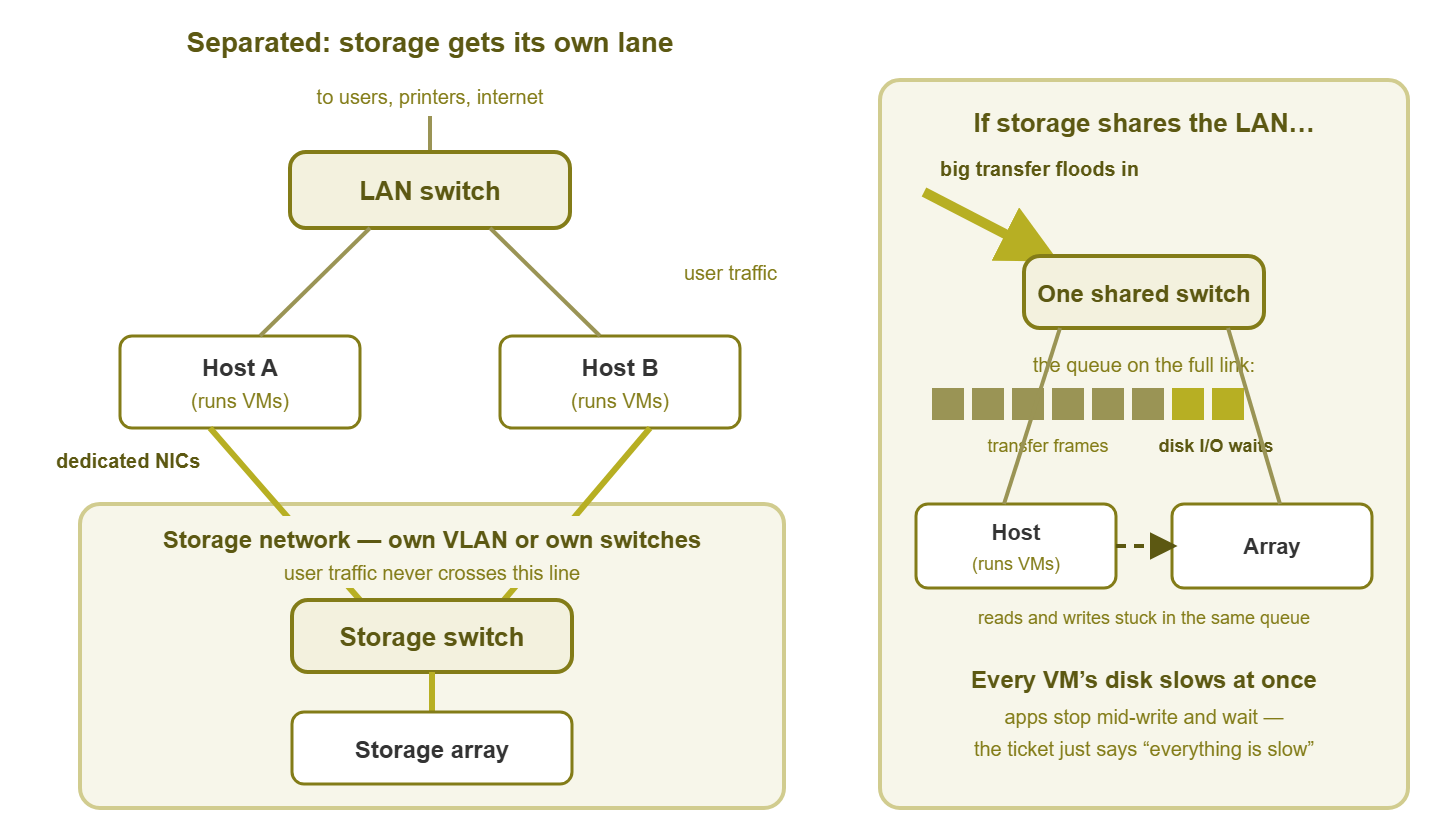
Figure 1: Separation gives storage its own lane (left). When storage shares the LAN (right), one big transfer fills the queue that disk traffic must pass through, and every VM feels it at once.
The risk runs in both directions, which people forget. Storage traffic can be the flood as easily as the victim. An array replicating to a partner, or a backup pulling from every host at once, can saturate shared links and flatten ordinary user traffic. Isolation protects the storage from the network and the network from the storage. A close cousin of this problem lives inside each host, where VMs and storage share the host's own uplinks. The guide to host uplink contention explains the same physics one layer down.
The case for separation: VLANs and dedicated switches
The cure is old-fashioned and unglamorous: give storage its own lane. There is a ladder of ways to do it, and honesty requires saying that each rung costs more and protects more.
- A storage VLAN on shared switches. A VLAN (virtual LAN) is a switch feature that splits one physical switch into isolated logical networks. Putting storage in its own VLAN keeps it out of reach of general traffic, stops broadcast noise, and prevents accidental crossovers. What it does not do is add capacity. The VLANs still share the same physical links and switch hardware. So a flood on one VLAN can still queue-starve the other wherever they share a wire. This is the entry-level rung — real protection against accidents, limited protection against congestion.
- A storage VLAN plus dedicated network cards. Give each host separate physical NICs (network interface cards) used only for storage, plugged into ports that carry only the storage VLAN. Now storage never competes with user traffic inside the host's uplinks, which is where much of the contention actually happens. The cost is modest — extra NICs and switch ports — and the improvement is large. For most small shops, this is the sensible minimum bar.
- Dedicated storage switches. Separate physical switches that carry storage and nothing else. Now a LAN disaster — a bridging loop, a broadcast storm, a botched switch upgrade — physically cannot touch storage, and vice versa. It costs real money and rack space. But the switches need not be fancy. A pair of solid, boring switches devoted to storage will outperform a shared core doing double duty. And "boring" is the highest compliment a storage network can earn.
Which rung is right? It depends — genuinely — on what rides the storage. If it carries the virtual disks of production VMs, aim high. In that case, use dedicated NICs at minimum and dedicated switches when budget allows. The failure mode is "every server freezes." If it carries a file share of installers, a VLAN is fine. Two rules apply on every rung. Keep the storage network unrouted — a dead-end street with no gateway to anywhere. Treat its switch ports with change-control respect. We cover keeping the lane clean, and proving it stays clean, in Keeping Storage Traffic Isolated.
Tip: if you do only one thing after reading this guide, find out today whether your hosts reach their storage over the same physical links your users share. Trace the actual cables and VLANs; do not trust the diagram. If the answer is yes, you have found your network's single most likely cause of a future "everything is down" afternoon.
What to monitor, at a glance, per storage type
Monitoring storage networks gets its own deep guides in this topic, but you should leave this page knowing roughly what matters for each flavor. The short version: watch the lane (the switch ports storage rides on) and watch the experience (the latency servers actually feel). Here is the starter map.
| Storage type | Watch first | Also worth watching |
|---|---|---|
| iSCSI | Session state per host-target pair; number of live paths; disk latency at the host | TCP retransmits; errors and discards on storage switch ports; jumbo-frame consistency |
| NAS — SMB shares | Share reachability; time to open and list files; NAS CPU and network load | Utilization on the NAS uplinks; failed logon storms; disk space on the NAS itself |
| NAS — NFS datastores | Mount availability; latency the hypervisor reports; NAS load | Utilization and discards on the path; per-datastore latency baselines |
| Fibre Channel SAN | Fabric switch port errors and utilization; array-reported service times | Link resets; anything the fabric logs about a flapping port |
Two of those columns deserve immediate follow-up reading. Latency — the number applications actually feel — is the single most useful storage metric you can collect. Storage Latency: The Number Applications Feel shows how to read it at the host, on the network, and at the array. That lets you tell which layer is guilty. And the switch-port counters that reveal a struggling storage lane — utilization, errors, discards — are the same ones that matter everywhere else. They are explained in the interface metrics that matter. Storage simply raises the stakes on both: thresholds you would tolerate on an office port are emergencies on a storage port.
One more traffic pattern belongs on your radar from day one: the nightly backup. It is the heaviest legitimate flow most storage networks ever carry. It runs while nobody is watching. And it has a talent for outgrowing its window and colliding with the morning. It gets a full guide of its own in Backup Traffic: The Nightly Flood That Tests Everything.
Where to go next
Here is the whole guide in one breath. Block storage rents the server a filing cabinet — raw blocks it formats and trusts like a local disk. File storage asks a clerk who owns the filing system. iSCSI wraps the disk's own command language in TCP so ordinary Ethernet can carry it. NAS is the clerk as an appliance speaking SMB and NFS. A SAN is a network whose only job is block storage. Storage traffic is synchronous, relentless, and allergic to loss. When it suffers, applications do not slow down; they stop. So it earns a lane of its own. That might be a VLAN with dedicated NICs or a pair of switches that carry nothing else. And because a lane only helps while it stays clean, storage networks are monitored networks, full stop.
From here, follow the pain you expect to meet first. Start with latency if users say things are slow. Read about iSCSI sessions and paths if you run block storage over Ethernet. Read about isolation and drift if you suspect your lane is not as separate as the diagram claims. Read about backup traffic before the nightly flood tests all of it for you. The rest of the Storage Network Monitoring guides are waiting when you need them.
Put this into practice with SysPeep Monitor
Your storage network quietly carries every application you run, and it deserves more than crossed fingers. SysPeep Monitor auto-discovers your switches, hosts, and the ports your storage rides on. It graphs utilization, errors, and discards on those links. It alerts you when the numbers start climbing toward a bad afternoon. The free trial installs on one Windows machine and finds your network in minutes.
Download Free TrialLearn About SysPeep - All Rights Reserved.