
Layer by Layer: Using the OSI Model as a Troubleshooting Ladder
The ticket says "the shared drive is gone." Behind that one sentence hides a dozen possible culprits. It could be a cable, a switch port, a VLAN setting, an IP address, a firewall rule, or a name lookup. It could be the file service itself, or a permissions change someone made on Friday at five. When everything is a suspect, most of us do the honest human thing. We poke at whatever we checked last time, in whatever order habit suggests, and hope.
There is a better way, and you already own the tool. The OSI model — that seven-layer diagram you memorized for an exam, or nodded along to in a video — is usually taught as trivia. Its real job is to be a ladder. Every layer depends on the layers below it, which means one honest test can clear whole groups of suspects at once instead of one at a time.
By the end of this guide you will know the seven rungs in plain language. You will know the three classic ways to walk them: bottom-up, top-down, and divide-and-conquer. You will learn which starting rung fits which symptom. You will also learn the concrete checks to run at each layer on a small business network. No memorization required — just a map you can climb.
In this guide
- The ladder in plain language
- Why the ladder works
- Three ways to walk it
- Which rung to start on
- Concrete checks for every layer
- A worked example
- Where the ladder wobbles
- Where to go next
The ladder in plain language
First, the introductions. OSI stands for Open Systems Interconnection. The OSI model splits the enormous job of "get data from computer A to computer B" into seven smaller jobs. They are stacked on top of each other. Each layer does its own narrow task and relies on the layer beneath it to do the rest. You do not need the formal definitions; you need the question each layer lets you ask.
| # | Layer | Its job, in plain words | The question you ask |
|---|---|---|---|
| 7 | Application | The actual service: web, email, file sharing, printing | Is the service itself doing its job? |
| 6 | Presentation | Formatting both sides can read: encryption, encoding | Can both ends read the data? |
| 5 | Session | Opening and keeping a conversation: logins, sessions | Does the conversation start and stay up? |
| 4 | Transport | Delivering to the right program via numbered ports | Is the right door (port) open? |
| 3 | Network | Moving packets between networks: IP addresses, routers | Can the two ends reach each other at all? |
| 2 | Data link | Moving frames across one local link: switches, MACs, VLANs | Is this local link carrying traffic? |
| 1 | Physical | Electrons and light: cables, connectors, ports, radio | Is it plugged in, powered, and lit? |
Two honest footnotes before we climb. First, real networks run TCP/IP, whose own model has fewer layers. In daily work layers 5 and 6 blur into 7. You can treat them together as the "handshake and encryption zone." That is fine. The value of the ladder is the ordering, not the trivia. Second, veterans will sometimes mention "layer 8." That is the unofficial layer for users, politics, and budgets. It is not in the standard, but it explains a remarkable number of tickets.
Why the ladder works
The whole trick rests on one property: each layer can only work if every layer below it works. A file transfer (layer 7) cannot happen without an open port (4). That needs a route between the machines (3), which needs a working local link (2). That in turn needs an intact cable (1). Dependency runs straight down the ladder.
That gives you a powerful shortcut. A single successful test high on the ladder vouches for everything beneath it. Say you can ping the server: send it the standard "are you there?" message and get a reply. In one second, you have just proven that the cable, switch port, VLAN, addressing, and routing between you and it are all basically fine. Five rungs cleared with one keystroke. You did not check the cable; you made checking the cable unnecessary.
Failures travel the other direction: they start low and surface high. A broken cable never announces itself as "broken cable" — it announces itself as "email is down," because users only ever see the top of the ladder. Symptoms live at layer 7; causes are scattered across all seven. The ladder is your map from the one to the other, and walking it is really an elimination game. The fastest troubleshooters eliminate whole floors of the building, not individual rooms. (That elimination instinct has a name and its own guide — see Binary Search for Networks, the ladder's close cousin.)
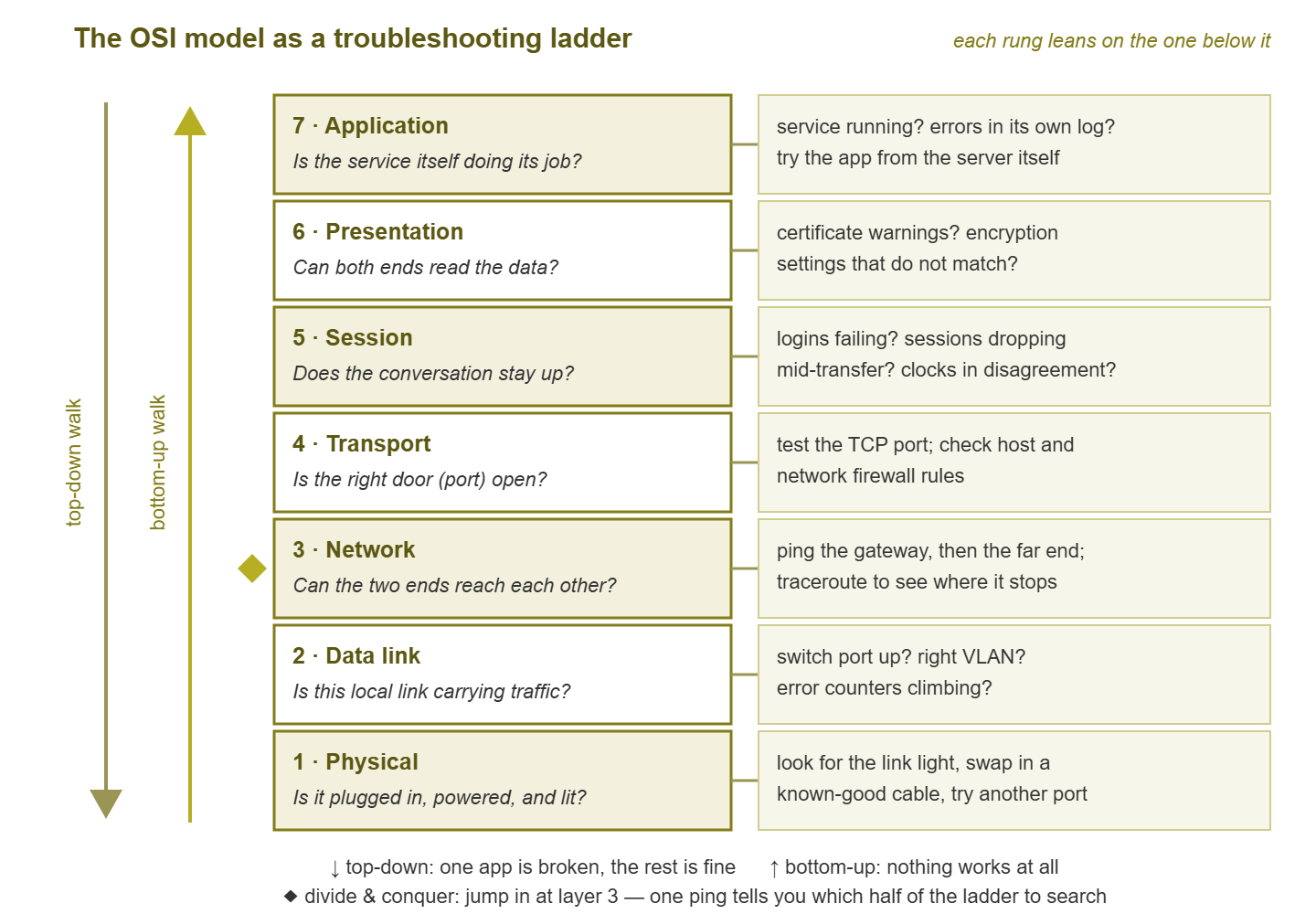
Figure 1: The ladder, with the question and an example check for each rung. The arrows are the two classic walks; the diamond is where divide-and-conquer jumps in.
Three ways to walk it
Bottom-up: start at the cable
Begin at layer 1 and climb: power and cables, then the link, then addressing and reachability, then ports, then the application. Bottom-up shines when nothing works — a machine with no connectivity at all, a device that just moved desks, or anything freshly installed. New installations fail low on the ladder with remarkable reliability; the first crimp on a cable is a rite of passage precisely because it rarely works. The cost of bottom-up is time: when the lower layers are healthy, you spend several tests confirming what one ping would have told you.
Top-down: start at the application
Begin at layer 7 and descend. If the user can browse the web and receive email but one specific application fails, the lower layers have already vouched for themselves. Working traffic is flowing through them right now. Your suspects are concentrated at the top: the service, its configuration, authentication, name resolution, certificates. Top-down fits "one thing is broken, everything else is fine." Its weakness is that application-layer evidence is fuzzy. Error messages lie, and it is easy to sink an hour into app settings when the real fault is one rung lower.
Divide and conquer: jump to the middle
Start in the middle — almost always layer 3 — because networking's cheapest decisive test lives there. Ping the far end. If the ping succeeds, layers 1 through 3 are cleared and your problem lives upstairs; if it fails, ignore the application entirely and work downstairs. One test, half the ladder gone. Then split the remaining half the same way. When the symptom gives you no strong lean either direction, this is the default walk of experienced troubleshooters, and it is worth making it yours.
The walks also combine. A common pattern is to open with one divide-and-conquer ping, then switch to a short bottom-up or top-down climb inside whichever half survived. Another is two people working the same fault from opposite ends of the ladder and meeting in the middle. This is genuinely efficient, as long as you talk to each other and only one of you changes anything at a time.
Which rung to start on
The walks are not competing religions; they are tools matched to symptoms. The symptom tells you where the suspects are probably concentrated, and you start where the suspects are. A few common pairings, with the first move that usually pays off:
| Symptom | Best walk | Sensible first move |
|---|---|---|
| "Nothing works on this one machine" | Bottom-up | Link light, cable, wall jack |
| "The whole office is down" | Bottom-up, at shared gear | Check the core switch, firewall, and their power |
| "One app is broken, the rest is fine" | Top-down | Reproduce it yourself; read the exact error |
| "Works by IP address but not by name" | Jump to name resolution | Test DNS directly — the phone book is the suspect |
| "It is slow, not broken" | Divide and conquer | Measure first; slowness hides on several rungs |
| Mixed or unclear reports | Divide and conquer | Ping the far end and let the result steer you |
A quick note on the second row: before you sprint to the server room, confirm the outage is real. Measure how wide it actually is. That first-minutes discipline is a topic of its own, covered in The First Fifteen Minutes. The ladder tells you where to climb; scoping tells you which building is on fire.
Concrete checks for every layer
Here is what each rung actually looks like on a small business network — the questions translated into two-minute checks you can run with built-in tools.
Layer 1 — Physical: plugged in, powered, lit
Look at the link light on the network port; no light usually means no physical connection. Reseat both ends of the cable, then swap in a known-good cable — one you trust because it was just working somewhere else. Try a different switch port and a different wall jack. The device may be powered over the cable itself (PoE, Power over Ethernet — common for phones and access points). If so, check that the switch has power budget left. Cables fail more often than pride allows: chair wheels, door hinges, and enthusiastic vacuuming are all layer 1 attack tools. And do not forget that for Wi-Fi users, layer 1 is radio. Distance, walls, microwave ovens, and a neighbor's chatty access point are all "cable problems" you cannot see or wiggle. When physical gremlins get subtle — damaged pairs, marginal links that flap — the physical layer problems guides go deeper.
Layer 2 — Data link: is the local link carrying traffic?
This is the switch's home turf. Check that the switch port shows "up" and that speed and duplex match on both ends. Confirm the port is in the right VLAN — a virtual LAN. This switch feature splits one physical switch into several separate logical networks. A device in the wrong VLAN is electrically connected and logically stranded. Look at the port's error counters: a healthy port's errors barely move, while a climbing count means the link is damaged even though it is technically "up." Finally, check that the switch has learned the device's MAC address on that port. This is the hardware address burned into every network card. Learning it is proof that frames from the device are actually arriving.
Layer 3 — Network: can the two ends reach each other?
Start on the affected machine and look at its address settings. Does it have a sensible IP address, subnet mask, and default gateway (the router address that leads out of the local network)? An address starting with 169.254 is the machine's way of saying it asked for an address and nobody answered. Then ping outward in steps: the default gateway first, then the far end. If pings die somewhere in the middle, traceroute — ping's chatty cousin, which reports every router hop along the way — shows you where the trail goes cold.
Layer 4 — Transport: is the right door open?
If an IP address is a building, ports are its numbered doors, and every service listens behind a specific one. Reachability (layer 3) proves you can get to the building; it says nothing about the door. Test the specific port the application uses. If it is closed, suspect the service not running or a firewall rule. Remember that firewalls live both on the network and on the host itself. Windows machines can test a port with one command, no extra tools:
C:\> ipconfig /all                          <- do I have an address, mask, gateway, DNS?
C:\> ping 10.0.0.1                          <- can I reach my default gateway? (layer 3, near)
C:\> ping 10.0.20.15                        <- can I reach the server by IP? (layer 3, far)
C:\> nslookup files01                       <- does the name resolve to the right address?
C:\> Test-NetConnection 10.0.20.15 -Port 445   <- is the file-sharing door open? (layer 4)
That five-line sweep is a compressed bottom-up walk from layer 3 upward, and it settles more arguments than any other block of commands in this library.
Layers 5 and 6 — the handshake and encryption zone
In practice you check these together. The classic residents include TLS certificates (the credentials behind the browser padlock) that have expired or do not match the name being visited. Other residents are encryption settings that one side requires and the other refuses, and clocks. Authentication systems are famously picky about time — if a machine's clock has drifted far from the server's, logins fail in ways that mention everything except clocks. Sessions that open fine and then drop mid-transfer also point here, or one rung down.
Layer 7 — Application: is the service itself happy?
Now, and only now, interrogate the application. Is the service or process actually running on the server? What do its own logs say? Can you use the service from the server itself, taking the entire network out of the equation? Are permissions right — can a different account get in? And check DNS, the network's phone book that turns names like files01 into addresses. DNS is technically an application-layer service, but every other application leans on it. That is why "works by IP, fails by name" is such a gift of a symptom. It is also why "it's always DNS" is a whole genre of joke. The DNS troubleshooting guides cover that rabbit hole properly.
Tip: write down each rung as you clear it, even just "L1-3 OK, ping works." Under stress, memory is the first thing to go. A scribbled ladder keeps you from re-testing floors you already cleared — or worse, letting someone else re-test them for you.
A worked example
Monday, 9:05. Dana cannot open the shared drive. Her web browser works, her email works, and nobody else has complained. Time to pick a walk. Something works (so the bottom rungs are carrying traffic), but we have no idea how high the fault sits. It is a classic divide-and-conquer setup. Watch how few moves this takes.
Test 1: from Dana's PC, ping the file server by IP address. Reply comes back. Layers 1 through 3 between her desk and that server are cleared — cable, port, VLAN, addressing, routing, all vouched for in one second. The fault lives upstairs.
Test 2: test the file-sharing port on the server by IP. Open and answering. Layer 4 cleared; the door is not the problem, and the service is at least listening. Upstairs again.
Test 3: resolve the server's name with nslookup files01. Timeout. There it is: the name lookup itself is failing. Everyone else can resolve the name fine, so the server-side record is intact — the suspect is Dana's machine's idea of who to ask.
Test 4: ipconfig /all shows her DNS server set, statically, to an address that belongs to a machine decommissioned long ago. It is a leftover from some ancient "temporary" fix that quietly outlived the machine it pointed at. Switch the adapter back to automatic, the name resolves, the drive maps, case closed.
Four tests, zero cables swapped, no reboots — because every test cleared a floor of the building instead of a room. Notice the shape of the ending, too: the root cause was an old change nobody remembered. That happens so often it gets its own guide: What Changed? Correlating Faults with Changes.
Where the ladder wobbles
The ladder is a map, and like all maps it simplifies. Be honest with yourself about its edges. Real devices span layers: a firewall lives at 3 and 4 but happily inspects 7; a "layer 3 switch" is exactly the contradiction it sounds like. Some faults straddle rungs. A duplex mismatch is a layer 1/2 problem that presents as mysterious layer 7 slowness. Packet-size (MTU) issues sit awkwardly between 2 and 3, letting pings succeed while bigger transfers hang.
Slowness in general deserves a caution: the ladder narrows where to look. But "slow" is a measurement problem as much as a location problem, and it has its own set of guides. Problems that come and go are even meaner, because a passing test might just mean the gremlin was napping — the intermittent problems guides cover trapping those. And the ladder will tell you where the fault is, never what it is. Turning "layer 2, this switch" into "failing transceiver" takes the guess-and-test discipline from Guess, Test, Learn.
None of that demotes the ladder. It just means the ladder is the frame you hang the other tools on, not a replacement for them.
Where to go next
You now have the whole method in miniature: seven rungs, one question per rung, three walks. There is also a symptom table that picks your starting point. Next time a vague ticket lands, resist the habitual poke — ask "which layers has the evidence already cleared?", pick your rung, and climb deliberately. Combine the ladder with the halving trick, hypothesis discipline, and the what-changed question. You have the full toolkit this pillar teaches. The rest of the guides live at A General Troubleshooting Methodology. And if you would like the bottom rungs watched for you around the clock, start with the network monitoring fundamentals.
Put this into practice with SysPeep Monitor
A monitoring dashboard is a pre-climbed ladder: it already knows which switch ports are down, which pings fail, and which services answer. SysPeep Monitor watches the lower rungs for you: interface status over SNMP, reachability by ping, service and port checks. So when a ticket lands, you start on the right layer instead of the first one. The free trial installs on any Windows machine in minutes.
Download Free TrialLearn About SysPeep - All Rights Reserved.