
Monitoring Site-to-Site Tunnels: Up, Down, and Lying
The ticket says the branch office cannot reach the file server. You log into the firewall at headquarters, find the VPN status page, and there it is: the tunnel to the branch is up. Green icon, recent timestamp, everything the vendor thought you would want to see. So you tell the branch it must be something on their end. Twenty minutes later you discover that the tunnel was up the way a bridge is up while its road is closed. The connection existed. Nothing was crossing it.
Site-to-site tunnels fail in exactly two flavors. The first is down. The tunnel will not establish, the status page says so, and while that is a bad day, at least it is an honest one. The second is up but lying. The two gateways negotiated a tunnel successfully, and both proudly report it as established. Yet the traffic you send into it disappears without a trace. Admins call this a blackhole — packets go in, nothing comes out, and no error message ever appears. It is the nastier flavor by far, because every dashboard that only looks at tunnel state swears everything is fine.
This guide is about monitoring both flavors properly. By the end you will know why tunnel state alone is not health. You will know how to build the one test that cannot be fooled (a probe that actually travels through the tunnel). You will know how to keep routine key-renewal blips from waking you up. And you will know why a written inventory of expected tunnels is the difference between noticing a missing tunnel and forgetting it existed.
In this guide
- What a site-to-site tunnel actually is
- The two flavors of failure
- Why "up" is not the same as "healthy"
- Phase one, phase two, and other words in the logs
- Through-tunnel probes: the gold standard
- Rekey blips, and how not to get paged for them
- The expected-tunnel inventory
- A tunnel-health checklist
What a site-to-site tunnel actually is
A site-to-site VPN tunnel connects two networks — say, headquarters and a branch office — across the public internet, in a way that makes them behave like one private network. A gateway device at each site (usually the firewall or router) takes every packet destined for the other site and encrypts it. The gateway wraps it inside a new packet addressed to the far gateway, and sends it across the internet. The far gateway unwraps it, decrypts it, and delivers it onto the local network as if it had arrived over a private cable. Users at the branch open files on the headquarters server using ordinary internal addresses, and neither side ever knows the internet was involved.
The useful mental model is a virtual cable: a cable made of mathematics instead of copper, running through the public internet. Like a real cable, it connects exactly two endpoints and carries whatever you route into it. Unlike a real cable, it has to be continuously renegotiated. It depends on two independently configured devices agreeing with each other. It rides on top of an internet path you do not control. Every one of those differences is a way for it to break — which is why it deserves better monitoring than a green icon.
The two flavors of failure
Flavor one: down. The tunnel fails to establish, or an established tunnel drops and does not come back. Causes are the usual suspects. The internet circuit at one site went out, or a gateway rebooted. A configuration change on one side no longer matches the other, or credentials the two sides use to authenticate each other expired. A down tunnel is easy to detect — the gateway itself knows and says so — and your monitoring mostly needs to relay the news quickly. If your gateway speaks SNMP, tunnel state is usually one of the questions it will answer. SNMP is the standard question-and-answer protocol monitoring tools use to ask devices about themselves.
Flavor two: up but lying. The negotiation succeeded. Both gateways hold a valid, established tunnel and report it faithfully. But packets sent into the tunnel never arrive at the other side, or arrive in only one direction. Users experience a dead branch; your status page shows green. This is the failure mode that burns a morning, because every place you would naturally look first tells you the tunnel is fine. The status page is not wrong, exactly — it is answering a different question than the one you care about. It answers "did the two gateways agree to build a tunnel?" You need "is traffic actually getting through it?"
Those really are the only two flavors, and telling them apart takes seconds once your monitoring checks both questions separately. The rest of this guide builds that monitoring. But first it helps to understand how a tunnel can be up and useless at the same time, because it sounds like it should be impossible.
Why "up" is not the same as "healthy"
"Up" means the two gateways completed a cryptographic handshake and agreed on keys. That handshake proves the gateways can reach each other and that their security settings match. It proves nothing about what happens to your actual data afterward, because forwarding traffic through the tunnel involves several more moving parts. Any of them can fail independently while the handshake stays valid.
The classic causes of a lying tunnel are worth knowing, because you will meet them all eventually. Routing: a gateway has to be told which destination networks belong in the tunnel. If a route is missing or wrong on one side, that side cheerfully sends branch-bound traffic out to the internet instead, where it dies. Traffic selectors: both sides carry a definition of which networks the tunnel is allowed to carry. If the two definitions do not match exactly, some or all traffic gets silently refused entry. Firewall policy: the tunnel delivers packets, and then a filter rule on the far side drops them. The tunnel did its job, but the packets still vanish. Stale sessions: after an interruption, one gateway believes an old tunnel is still valid while the other has torn it down. In that case, one direction works and the other blackholes until the stale side gives up. Overlapping addresses: two sites using the same internal address range can negotiate a beautiful tunnel that can never deliver a packet sensibly.
Notice what these have in common: not one of them changes the tunnel's reported state. The handshake is healthy; the plumbing behind it is broken. That asymmetry is the entire reason this article exists, and it leads directly to the one test that cannot be fooled.
Phase one, phase two, and other words in the logs
One gentle paragraph of theory, because these words will appear in your gateway logs and it helps to nod along. Most site-to-site tunnels are negotiated in two stages, and vendor logs usually call them phase one and phase two. In phase one, the two gateways verify each other's identity and build a small encrypted management channel between themselves. Think of it as agreeing on a private language before discussing business. In phase two, they use that channel to negotiate the actual data tunnel. They negotiate which networks it carries and which encryption keys protect it. The keys are deliberately short-lived, so the gateways repeat parts of this negotiation on a schedule — called rekeying — to replace old keys with fresh ones. A failure logged in phase one usually means reachability or identity problems. A failure in phase two usually means the two sides disagree about what the tunnel should carry. That is genuinely enough theory to read most tunnel logs without flinching.
Through-tunnel probes: the gold standard
Here is the test that settles every argument. From a machine at one site, probe a host that lives at the other site, so the test traffic travels through the tunnel itself. A simple ping (a tiny "are you there?" message) from your monitoring system at headquarters to a quiet, always-on device at the branch answers the only question users care about. The target could be a server, a switch management address, or a printer if you are desperate. If the probe gets replies, traffic flows; the tunnel is healthy no matter what else is going on. If the probe fails while the tunnel reports up, you have caught the liar, usually before the first ticket arrives.
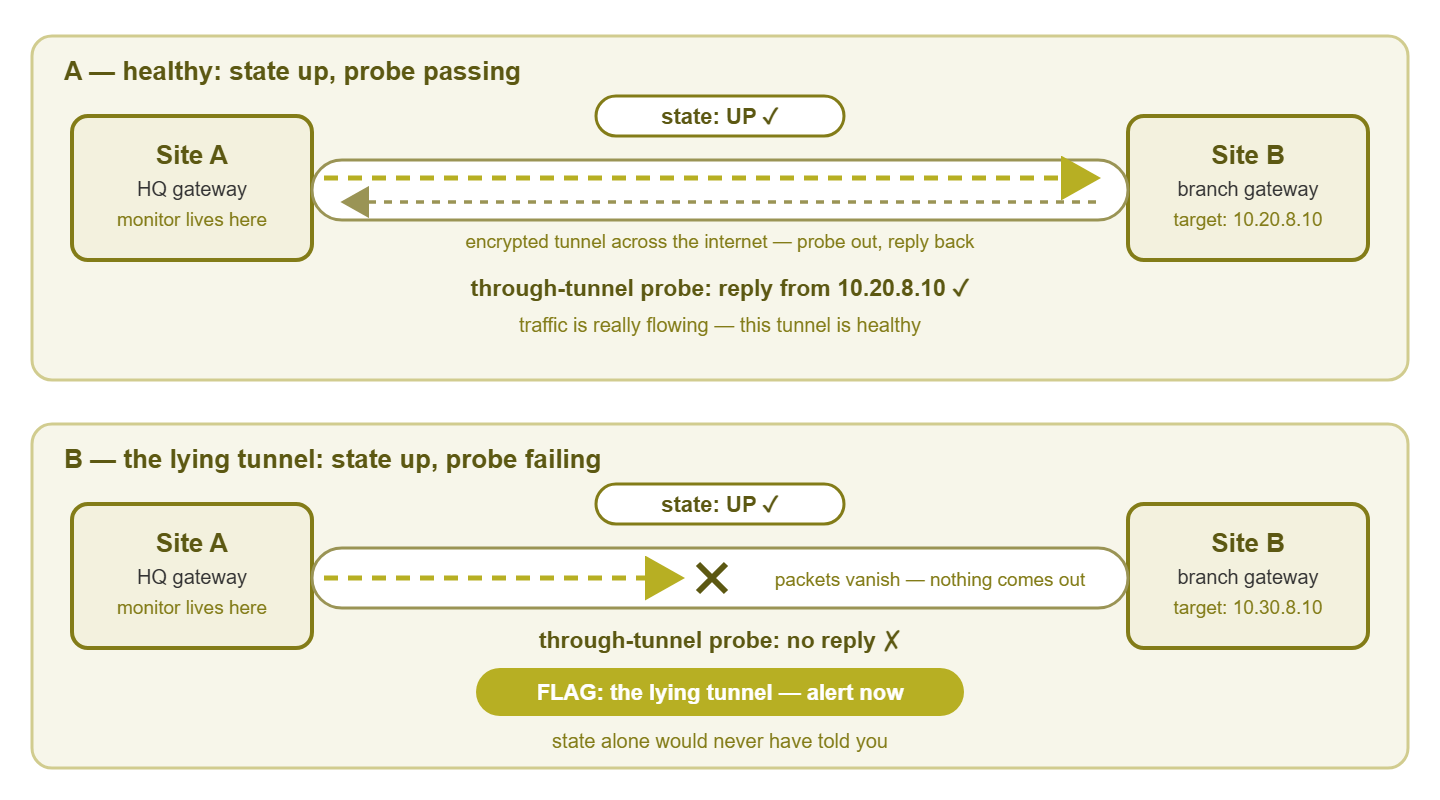
Figure 1: Same tunnel state, opposite truths. Only the through-tunnel probe tells them apart.
The details matter, so here they are. Probe the far side's inside address, not the far gateway's public address. Pinging the branch firewall's internet-facing address only proves the internet path works; that test bypasses the tunnel entirely. The probe target must be an internal address that is only reachable through the tunnel, so success can mean only one thing. Pick a boring target. Choose a device that is always on, answers pings reliably, and does not get rebooted for fun. Write down what you chose. That way, the day the device is decommissioned you remember to move the probe instead of chasing a phantom outage. Probe every tunnel. One probe per tunnel, each aimed at a host behind that specific tunnel. Record the response times, not just success. A tunnel whose probe latency doubles is telling you about congestion or a rerouted internet path underneath it. The tunnel rides your WAN circuit, and inherits all of that circuit's moods.
If your monitoring platform supports remote probes, you can upgrade to the deluxe version: probe in both directions. Remote probes are small agents installed at other sites that run checks locally and report back. A probe from headquarters to the branch and a second from the branch back to headquarters will catch the ugly one-way failures. In those failures, traffic flows fine in one direction and blackholes in the other. One-way failures are rarer, but they produce the most confusing symptoms ("I can see the server but it can't see me"). So catching them automatically is worth the small setup effort.
What does it look like in practice? Two tunnels, both reporting up on the gateway, probed at the same moment:
C:\> ping 10.20.8.10        (file server behind the Branch-A tunnel)

Reply from 10.20.8.10: bytes=32 time=41ms TTL=126
Reply from 10.20.8.10: bytes=32 time=40ms TTL=126

C:\> ping 10.30.8.10        (file server behind the Branch-B tunnel)

Request timed out.
Request timed out.
Branch A is healthy. Branch B has a lying tunnel, and you found it with a test a junior admin can run on day one. Your monitoring system should simply be running this exact test every minute, for every tunnel, forever — and alerting when replies stop.
Rekey blips, and how not to get paged for them
Once your through-tunnel probes are running, you will discover something mildly annoying: perfectly healthy tunnels hiccup. Remember that gateways replace their encryption keys on a schedule. Most of the time a rekey is seamless, but on some device combinations it causes a brief stumble. On those combinations, there may be a dropped probe or two, a few seconds where the tunnel is technically being rebuilt. The tunnel then carries on as if nothing happened, because from its point of view nothing did. If your alerting fires on a single failed probe, every one of these blips becomes a page. A page that always resolves itself before you finish reading it is how admins learn to ignore alerts entirely.
The fix is a confirmation count: alert only after several consecutive probe failures, not the first one. Three to five consecutive failures at a one-minute probe interval is a sensible starting rule. A rekey stumble lasts seconds and clears well inside that window, while a real outage sails past it and pages you within a few minutes. You lose almost nothing in detection speed and you gain an alert that is nearly always real. Treat the individual missed probes as data, not alarms: they still land in your graphs. And a tunnel whose blips are becoming more frequent is quietly asking for attention during business hours.
Tip: if one particular tunnel blips on a suspiciously regular schedule — say, a short stumble at almost the same interval every time — check both sides' key lifetime settings. Mismatched lifetimes between the two gateways are a classic cause of rhythmic rekey stumbles, and making the two sides agree usually calms the tunnel right down.
One more de-noising trick: make tunnel alerts depend on the circuit underneath them. If the branch's internet circuit goes down, the tunnel goes down with it. In that case, you do not need two alerts (or worse, one alert about the symptom and none about the cause). Most monitoring systems let you declare that the tunnel depends on the WAN interface. That way, the circuit outage alerts loudly and the tunnel alert is suppressed as a known consequence.
The expected-tunnel inventory
Here is a quiet failure mode nobody warns you about: monitoring only the tunnels you can see. If your monitoring discovers tunnels from the gateway's current status, then a tunnel that vanishes entirely can simply disappear from the list. In that case, its checks can disappear with it. The tunnel might be deleted in a config change, lost in a firmware update, or never re-established after a power cut. Nothing is red, because the thing that would be red no longer exists. The defense is an expected-tunnel inventory. That is a deliberate, written list of every tunnel that should exist, maintained by a human. Monitoring is configured against the list rather than against whatever happens to be there today.
The inventory does not need to be fancy. A small table — in your documentation system, or even a shared spreadsheet at first — with a row per tunnel:
| Field | Example | Why it is in the inventory |
|---|---|---|
| Tunnel name and peer site | HQ ↔ Branch-B | The human name everyone uses in tickets |
| Far-side networks | 10.30.0.0/16 | What should be reachable through it |
| Probe target | 10.30.8.10 (file server) | The through-tunnel test aimed at this tunnel |
| Normal probe latency | 35–50 ms | Baseline, so "slow" has a definition |
| Far-side contact | Branch office manager | Who to call when you need eyes on site |
| Criticality and hours | Business-hours site | Decides whether a failure pages at night |
Then wire the monitoring to the inventory. Every tunnel on the list gets a state check and a through-tunnel probe. An expected tunnel that is missing is itself an alert. This flips the logic from "alert on problems with tunnels we know about" to "alert whenever reality disagrees with the list." That also means that when someone adds a new site, adding it to the inventory is what creates its monitoring. The reverse check is worth a glance too. A tunnel that exists on the gateway but not on your list is either missing documentation or a surprise. And both are worth a question.
Alert on each tunnel individually, not on a rolled-up "VPN status." A summary light that turns red when "a tunnel, somewhere" has a problem forces you to go hunting. An alert that says "Branch-B tunnel: state up, probe failing for 5 minutes" hands you the diagnosis and the location in one line. You have the inventory; make the alerts use its names.
A tunnel-health checklist
Pulling it all together: for every tunnel in the inventory, this is the set of checks that catches both flavors of failure — the honest one and the liar — without paging you for routine noise.
| Check | What it tells you | Frequency | Starting alert rule |
|---|---|---|---|
| Tunnel state on the gateway | Negotiation works; flavor-one failures | 1 min | Alert when down 2–3 min (suppressed if the circuit is down) |
| Through-tunnel probe | Traffic actually flows; catches the liar | 1 min | Alert after 3–5 consecutive failures |
| Probe latency and loss trend | Path quality under the tunnel | Every probe, graphed | Warn when latency runs well above its baseline |
| Traffic counters, both directions | One-way blackholes and dead silence | 5 min | Warn when one direction sits at zero while the other is busy |
| Rekey and negotiation log events | Flapping, mismatched settings | On event | Warn on repeated failures; ignore clean rekeys |
| Inventory match | Missing or surprise tunnels | 5–15 min | Alert on any expected tunnel absent from the gateway |
The traffic-counter check deserves one sentence of explanation, because it is the cheap cousin of the bidirectional probe. Most gateways count bytes into and out of each tunnel, and those counters are usually readable over SNMP. A tunnel where outbound bytes climb while inbound sits frozen at zero is either carrying a one-way blackhole or talking to a site where absolutely nobody is answering. During business hours at a staffed office, the second explanation is the unlikely one. It is not proof the way a probe is proof, but it is a free early warning from data the gateway is already collecting. And it is the natural first step toward watching how much each tunnel actually carries — which is its own subject, covered in Per-Tunnel Throughput: Seeing Inside the Pipes.
Where to go next
The one-line summary of this whole guide: tunnel state tells you the handshake worked; only a through-tunnel probe tells you the tunnel works. Monitor both, per tunnel, against a written inventory of what should exist. Give the probes a confirmation count so rekey blips stay off your phone. And let the counters whisper about one-way problems before users shout about them. Do that, and the lying tunnel — the failure that makes smart admins doubt their own tools — becomes a five-minute diagnosis. The day will come when the probe fails and you need a structured path from symptom to cause. When it does, the step-by-step triage in A VPN Troubleshooting Playbook picks up exactly where this guide ends. The rest of VPN & Remote-Access Monitoring covers the capacity and visibility questions that follow.
Put this into practice with SysPeep Monitor
Everything in this guide comes down to running the right checks relentlessly. SysPeep Monitor pings hosts on the far side of every tunnel on a schedule. It reads tunnel state and traffic counters over SNMP. It uses dependencies and confirmation rules to keep rekey blips from paging you. With lightweight remote probes at branch sites, it tests your tunnels from both ends. The free trial installs on any Windows machine in minutes.
Download Free TrialLearn About SysPeep - All Rights Reserved.