
Packet Loss on Wi-Fi: Why Wireless "Loss" Is Different
Run a long ping from a wired desktop and it comes back boringly perfect: zero loss, flat times. Run the same ping from a laptop on Wi-Fi and things wobble. You see a lost packet here and there, with response times bouncing between 2 and 80 milliseconds. The natural conclusion is "the Wi-Fi is dropping packets." The truth is stranger. The Wi-Fi has been dropping frames constantly, on purpose, the entire time — and quietly repairing almost all of it before you could notice.
Wireless networks are built on the assumption that transmissions will fail, so they retry failed frames automatically, dozens of times a second if needed. That single design decision means the word "loss" does not mean the same thing on Wi-Fi as it does on a cable. And it means your wired troubleshooting instincts will mislead you. This guide explains the machinery. It covers why the air loses frames by design and why sick Wi-Fi shows up as delay before it shows up as loss. It shows which metrics actually reflect wireless health. And it explains how to tell an air problem from a wired one hiding behind the access point.
In this guide
- One speaker at a time: the air is a shared room
- Losing frames is normal: the retry machinery
- Retries vs. true loss: where the damage shows up
- Signal strength vs. signal quality: the noisy restaurant
- The metrics that actually reflect Wi-Fi health
- The usual causes, ranked
- Quick checks with ordinary tools
- Is it the Wi-Fi, or the network behind it?
- What "acceptable" looks like on Wi-Fi
One speaker at a time: the air is a shared room
Start with the difference that explains everything else. On a modern wired network, every device gets a private lane. Your PC's cable runs to its own switch port. The link is full duplex, meaning both ends can talk simultaneously without ever competing. Two hundred wired PCs can all transmit at once and nobody interferes with anybody.
A Wi-Fi channel is the opposite: one shared room with no chairperson. On any given channel, only one radio can transmit at a time. That includes the access point itself, which waits its turn like everyone else. The protocol that keeps this civilized is called CSMA/CA (carrier sense multiple access with collision avoidance). This is a formal name for good manners: listen first, and if someone is talking, wait a random moment before trying again. Everyone on the channel is in the room together. That includes your devices, your other access points if they share the channel, and the neighboring company's network too, politely taking turns with yours.
This is why the real currency of Wi-Fi is not bandwidth but airtime: seconds of speaking time in the shared room. Every problem we will meet in this guide — retries, interference, slow legacy devices, overcrowding — does its damage the same way. It wastes speaking time, so everyone else stands around waiting to talk. Keep the room in your head; every metric later makes sense in terms of it.
Losing frames is normal: the retry machinery
On the air, data travels in frames — think of a frame as the envelope a packet wears for one hop. And the air is a genuinely hostile place for an envelope. Signals reflect off walls and arrive smeared, distant transmitters talk over you, and microwave ovens roar. Human bodies — which are essentially walking bags of salt water, excellent at absorbing radio — wander through the signal path. The engineers who designed Wi-Fi did not fight this; they accepted it and built the repair into the protocol.
The mechanism: every ordinary data frame must be explicitly acknowledged. The receiver sends back a tiny "got it" (an ACK) immediately. If the sender hears no ACK within a fraction of a millisecond, it assumes the frame died. In that case, it waits a short random backoff and transmits it again. Often this is at a lower, more robust data rate, the radio equivalent of repeating yourself slowly. Only after many failed attempts (the retry limit) does the sender give up and truly discard the frame.
A wired link does none of this. If a frame is damaged on a cable, the switch discards it, and that is the end of the story. There is no second attempt at this layer. Ethernet gets away with such ruthlessness because cables are astonishingly clean. Recovery from the rare wired loss is left to higher layers like TCP, seconds later. The diagram below is the whole difference in one picture:
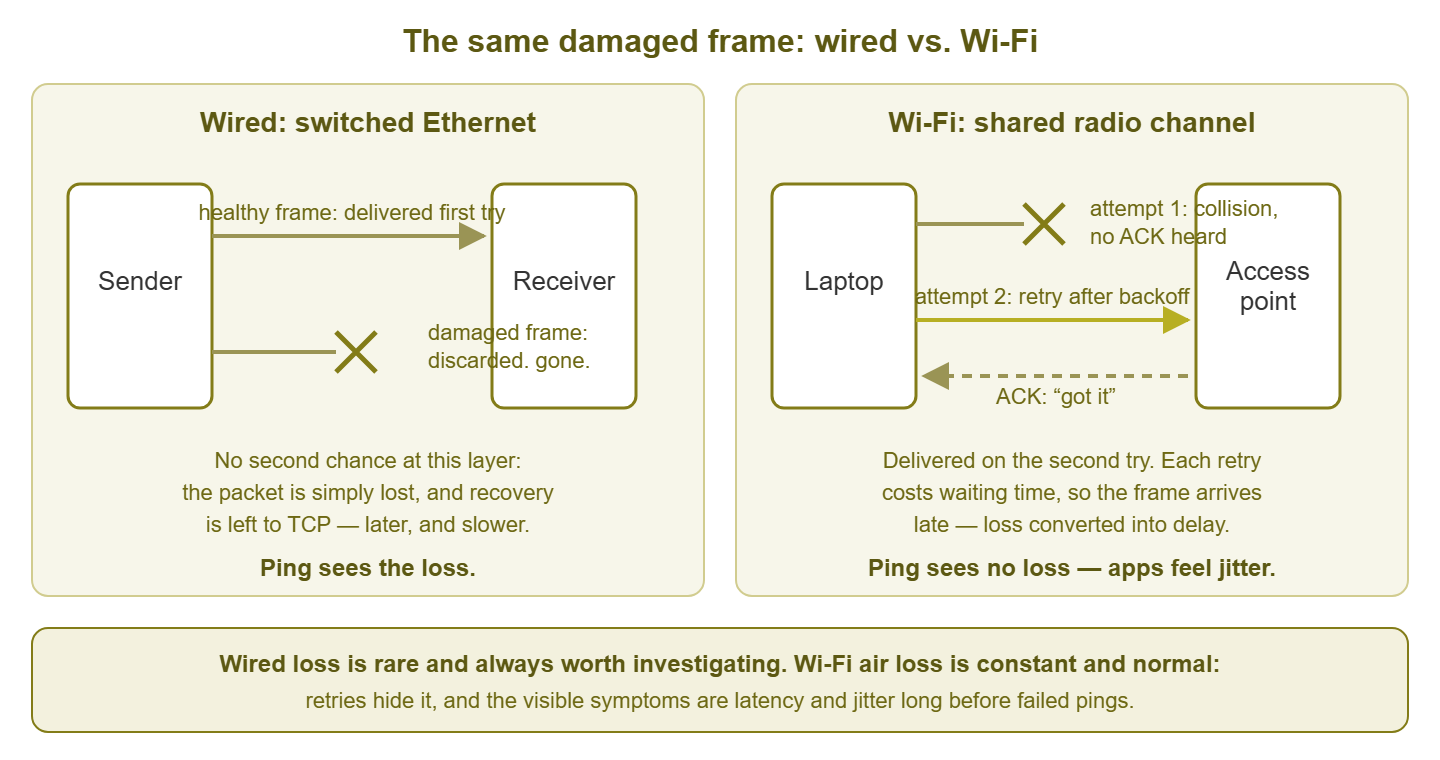
Figure 1: The same damaged frame, on wire and on air. The wired frame dies quietly and stays dead. The Wi-Fi frame is retried and arrives late — which is why unhealthy Wi-Fi shows up as jitter long before it shows up as ping loss.
So "loss" on Wi-Fi splits into two very different numbers. Air loss is the first-try failure rate — frames that needed a retry. It is constant, normal, and invisible to ping. End-to-end loss is frames that died even after every retry — the thing ping actually measures. On healthy Wi-Fi the first number might be 10% while the second is a hundredth of that. The retry machinery is a superb loss-hiding machine; what it cannot hide is the time the retries take.
Retries vs. true loss: where the damage shows up
Every retry costs time: the wait for the missing ACK, the random backoff, the retransmission itself. Often the whole exchange runs at a slower data rate than the first attempt. A frame that needed three tries arrives milliseconds late; a burst of retries makes some frames arrive on time and others very late. Delay that varies from packet to packet has a name: jitter. High retry rates therefore surface as spiky latency and jitter first, while measured loss stays near zero. That is exactly the wobble you saw in that laptop ping.
Who suffers depends on the traffic. Downloads and web pages barely notice — TCP absorbs the wobble and the file arrives intact. Real-time traffic is another story. A voice packet that arrives after its moment to be played has passed is thrown away by the application. So to a phone call, very late is exactly the same as lost. This is why users report robotic audio and frozen video from a network where ping swears the loss is zero. Only when the air gets truly bad, and retries exhaust entirely, does real ping loss appear — a late-stage symptom.
| Number | What it measures on Wi-Fi | What movement means |
|---|---|---|
| Retry rate | First-try failures being repaired in the background | Trouble is starting: interference, weak signal, or a crowded channel |
| Latency spread (jitter) | Time being spent on retries, backoffs, and queueing | Users on calls and video feel it already |
| Ping loss | Frames dead after every retry was exhausted | The air is already very sick — act now |
Read the table bottom-up and you get the diagnostic habit: on wireless, ping loss is the last alarm to ring, not the first. Wait for it and you are troubleshooting a network your users gave up on weeks ago.
Signal strength vs. signal quality: the noisy restaurant
Now for the two numbers everyone conflates. Imagine trying to follow a friend's story in a restaurant. What matters is not how loudly they talk — it is how loudly they talk compared to the room. A whisper works in a library; a shout fails next to the kitchen. Radios live by the same rule.
Signal strength is the loudness: how much of the access point's transmission reaches your device. It is written in dBm on a negative scale where closer to zero is stronger (−50 is loud, −85 is faint). Noise is the restaurant: the sum of everything else the radio hears — distant Wi-Fi, electronics, the microwave. The number that predicts your experience is the gap between them, the signal-to-noise ratio (SNR), measured in dB. A strong signal in a noisy corner can perform worse than a modest signal in clean air. That is why "full bars" (bars show loudness only) so often lies.
SNR matters because it decides how fast devices dare to talk. High SNR lets a radio use dense, efficient encodings — more data per moment of airtime. As SNR falls, devices shift to slower, more robust rates and retry more. They are talking slowly and repeating themselves, occupying the shared room longer to say the same thing. Rough field guidance for the client-side numbers:
| Signal at the client | Rough meaning |
|---|---|
| around −50 dBm | Excellent — effectively same-room as the access point |
| −60 to −67 dBm | Good — comfortable for voice and video |
| −70 to −75 dBm | Marginal — browsing fine, real-time traffic starts to suffer |
| below −80 dBm | Poor — expect low rates, heavy retries, and disconnects |
For SNR itself: above roughly 25 dB the conversation is easy. Between 15 and 25 it works but labors. Below about 10 the radio is lip-reading. Rules of thumb, not physics constants — but the ones the industry actually plans around.
The metrics that actually reflect Wi-Fi health
Watching ping loss to judge Wi-Fi is like judging an engine by whether the car has physically stopped. The metrics below are the real gauges. Most live in your access point or controller's dashboard. And many APs also expose them over SNMP so a monitoring system can track them over time.
| Metric | What it tells you | Worth investigating when |
|---|---|---|
| Retry rate (per radio or AP) | Share of transmitted frames that needed retransmission | Sustained above roughly 15%; near 30%, users are suffering |
| Channel utilization | How busy the air is — including neighbors on the same channel | Regularly above about half at busy hours; near 80% the room is shouting |
| Clients per AP | How many devices share each room | Counts far above that AP's normal — often meaning a neighbor AP died |
| Per-client signal | The AP's list of how well it hears each device | Many clients below about −70 dBm — a coverage or placement problem |
| Client data rates | How efficiently airtime is being spent | Clients stuck at very low legacy rates, hogging the room |
One subtlety worth underlining: channel utilization counts everything on the channel, not just your traffic. Your access point can be nearly idle while its channel reads 70% busy. That can be because the office next door is on the same channel having a very energetic day. That is the shared room doing what shared rooms do.
The usual causes, ranked
When the wireless metrics look bad, these are the culprits, in rough order of how often they turn out to be the answer on small networks.
1. Your own access points interfering with each other
The most common cause is self-inflicted: co-channel interference. Two of your APs on the same channel do not talk over each other. They politely share the room, which means each gets a fraction of the airtime. Worse is the 2.4 GHz special: channels that partially overlap. Only a few channels in that band do not overlap — in most regions, 1, 6, and 11. Partially overlapping channels cannot coordinate at all, so they degrade each other as raw noise. The classic origin story is "Wi-Fi was slow, so we added more APs at full power" — which enlarges every room until they all overlap.
2. Non-Wi-Fi interference
Microwave ovens (which leak into the same 2.4 GHz band, with a famous lunchtime signature), older cordless phones, Bluetooth gadgets, wireless cameras, and industrial motors. These devices never learned the listen-before-talking manners — they simply roar, raising the noise floor and crushing SNR for everyone nearby. The tell is a pattern in time or place.
3. Distance and attenuation
Signal fades with distance and with what it must pass through. Drywall is mild; masonry, concrete, metal shelving, coated glass, elevator shafts, and aquariums are brutal. Distant clients run at low SNR, so they use slow rates and retry heavily. And because the room is shared, their slowness costs everyone else airtime too.
4. Too many clients per access point
Every added device increases contention: more radios listening for a quiet moment, more collisions, more backoff. A meeting room with forty phones can crawl even when total data demand is modest, purely from coordination overhead. Watch client counts after an AP fails, too — its orphans pile onto the survivors, which then "mysteriously" degrade.
5. Legacy slow clients
Airtime, not bytes, is the budget. A device using an ancient low data rate takes many times longer to send the same frame than a modern one. One elderly gadget at the lowest legacy rate is a slow talker who never leaves the meeting. Retiring the lowest legacy rates on your APs is a standard cleanup, with cautions — the steps live in the remediation catalog.
Quick checks with ordinary tools
You do not need a spectrum analyzer for a first diagnosis; the tools already on your machines reveal a lot. On Windows, with the laptop connected to the suspect network:
netsh wlan show interfaces

    Name                   : Wi-Fi
    State                  : connected
    SSID                   : office
    Channel                : 6
    Receive rate (Mbps)    : 144.4
    Transmit rate (Mbps)   : 144.4
    Signal                 : 62%
Windows reports signal as a percentage (a friendly approximation of dBm). The interesting fields are the channel — does it match your plan? — and the rates. Low negotiated rates at your own desk are a signal or interference story. Walk the building watching this output refresh and you have a poor man's site survey.
On Linux, iw shows the same and more, including the retry counters themselves:
iw dev wlan0 link
    Connected to aa:bb:cc:dd:ee:ff (on wlan0)
    SSID: office
    freq: 2437
    signal: -71 dBm
    tx bitrate: 39.0 MBit/s

iw dev wlan0 station dump
    Station aa:bb:cc:dd:ee:ff (on wlan0)
    signal:      -71 dBm
    tx packets:  28054
    tx retries:  4102
    tx failed:   57
This output is the whole article in four numbers. Signal is −71 dBm: marginal. Of 28,054 transmitted frames, 4,102 needed retries — about 15%, the air working hard. But only 57 died after all retries: roughly 0.2% true loss. The hiding machine is doing its job; the users are paying in delay.
Then there is the humble paired ping. Run the same test from a wired machine and the wireless laptop at the same time, to the same target. Compare not just the loss line, but the spread of times:
# wired desktop
ping -n 100 192.168.1.1
    Packets: Sent = 100, Received = 100, Lost = 0 (0% loss)
    Minimum = 1ms, Maximum = 3ms, Average = 1ms

# wireless laptop, same minutes
ping -n 100 192.168.1.1
    Packets: Sent = 100, Received = 99, Lost = 1 (1% loss)
    Minimum = 2ms, Maximum = 87ms, Average = 9ms
The wired run is your control. On the laptop, the single lost packet is borderline. But that 87 ms maximum against a 2 ms minimum is the retry story written in plain text. A wired link with those numbers would be broken. A wireless link with those numbers is telling you its retry rate before you ever open a dashboard.
Is it the Wi-Fi, or the network behind it?
Here is the trap that catches everyone at least once. The access point is also a wired device, hanging off a switch port by a cable. Any of the ordinary wired failures — a marginal cable, a congested uplink, a dying switch — will happily masquerade as "bad Wi-Fi." Before redesigning your wireless, run this short bisection:
- 1. The paired test. Wired machine clean, wireless laptop dirty (as above)? The problem lives somewhere on the wireless side — the air or the AP. Both dirty? Stop blaming the air; you have a wired problem.
- 2. Ping the AP's wired address from a wired machine. Loss here means the AP's uplink is suspect. In that case, check that cable and the switch port's error counters. See the counters guide for exactly what to look for.
- 3. From the wireless laptop, ping the AP itself (its address is the first hop). Loss and jitter on this one-hop test point squarely at the air or the AP's radio: signal, interference, crowding. Clean to the AP but lossy beyond it? The air was innocent — the trouble is in the wired network behind. The layer-by-layer tour of where packets die takes over from here.
- 4. If it is truly wireless, use the pattern. Bad everywhere, always: channel plan or overcrowding. Bad in one area: coverage or a local noise source. Bad at certain times: interference or load with a schedule — lunchtime says microwave, mornings say meetings.
Here is one edge case. An overloaded access point can drop traffic all by itself while both the air and the wires test clean. It may have too many clients, or be an underpowered unit doing too much encryption work. If one specific AP misbehaves under load while its twins are fine, suspect the box, not the spectrum.
What "acceptable" looks like on Wi-Fi
So does wireless get a free pass on loss? Mostly no — and this surprises people in both directions. At the level users and applications see, hold Wi-Fi to nearly wired standards. A well-run wireless network should still deliver end-to-end ping loss under about 1%, and usually much less. That is precisely because the retry machinery repairs the air so effectively. Sustained ping loss of several percent over Wi-Fi is not "wireless being wireless" — it means retries are exhausting and the air is in genuine trouble.
Where Wi-Fi earns different expectations is underneath. Retry rates that would be catastrophic numbers on a cable are ordinary weather on the air. Latency will always be spikier than wire. Plan real-time traffic with that in mind. Judge the air by its own gauges — retry rate, utilization, SNR — and judge the user experience by the same loss standards as ever. For the full defensible numbers by traffic type — what voice, video, and bulk data each tolerate — see how much packet loss is acceptable. And for the craft of measuring without fooling yourself, see measuring loss accurately.
Tip: loss, latency, and jitter are a family, and Wi-Fi is where you see them shape-shift into each other most clearly. Air loss becomes retries, retries become jitter, and jitter becomes application loss. The Core Network Metrics guides cover how the family behaves everywhere else.
The rest of the story — where loss comes from on every medium, and how to hunt the intermittent kind — lives back at the Packet Loss pillar.
Put this into practice with SysPeep Monitor
No wired-side tool can see your radio spectrum, and SysPeep Monitor won't pretend to. What it does watch is everything around the air. That includes each access point up or down, uplink traffic and error counters, and client counts over SNMP. It alerts when an AP drops and its orphans pile onto the neighbors. That is exactly the wired half of every Wi-Fi diagnosis in this guide. The free trial installs on a Windows machine in minutes.
Download Free TrialLearn About SysPeep - All Rights Reserved.