
A Printer Troubleshooting Playbook (Yes, Really)
"The printer is broken" is the least informative sentence in IT. It can mean a paper jam, a dead switch port, or a wedged queue on a server three rooms away. It can mean an empty toner cartridge or a driver having a private crisis on one laptop. On special days, it can mean several of these at once. Faced with that, most troubleshooting starts the same way: someone walks to the printer and looks at it. Sometimes that works. It is still the wrong first move.
Printer problems are not chaos. They fall into a small number of failure classes. Each class announces itself through monitoring signals you can read from your desk. A two-question triage sorts almost every incident into the right class before you have stood up. A playbook for printers sounds like a joke, and that is exactly why one pays off. The devices that fail most often are the ones where a practiced sequence saves the most time. I have run this one on a shipping floor with a line waiting, and it held.
This playbook assumes the monitoring built earlier in this series — device status and availability from the basics guide, queue visibility from the queues guide. But the logic works even if all you have is a browser and the printer's own status page. By the end you will have the triage questions, the tells for each failure class, and an honest rule about reboots. You will also have the two habits that turn individual fixes into fleet wisdom: the fix log, and the retirement decision.
In this guide
- The most diagnostic question: who can't print?
- The monitoring-first habit
- One user: work the client, not the printer
- Everyone: the four failure classes and their tells
- Walking the tree: a worked example
- Reboots: medicine or makeup?
- The per-printer fix log
- Retiring a chronic offender
- Where to go next
The most diagnostic question: who can't print?
One question splits the entire problem space in half, and it should be your reflex before any technical step: is this one user, or everyone? If one person cannot print while their neighbors print normally to the same device, the printer is essentially exonerated. The fault lives on that person's computer, in the driver, the printer mapping, or the permissions. If everyone who uses the device is stuck, the fault lives in shared territory: the device itself, the network path to it, or the queue that feeds it. Two different investigations, two different toolkits, almost no overlap.
Answering takes under a minute and rarely requires leaving your chair. The ticket itself often tells you ("nobody in accounting can print" versus "I can't print"). Your monitoring tells you more. If the device shows an error state or the queue shows jobs piling up, it is an everyone-problem regardless of how many people have complained yet. And when it is genuinely ambiguous, one test print from a second machine — yours, remotely, or the neighbor's — settles it. If your page prints, it is that user's machine. If it joins the pile, it is an everyone-problem.
Skipping this question is how printer tickets eat an afternoon. You reinstall drivers on a laptop to fix what was really a jammed device. Or you power-cycle an innocent printer while the wedged job sits on a server, ready to strike again. Ask the question. Every path below starts from its answer.
The monitoring-first habit
The second reflex: look at the data before you look at the hardware. Before walking anywhere, spend thirty seconds with the monitoring you already have and let it rule things out. Each glance eliminates an entire failure class without a single hallway conversation:
| Glance at | Healthy looks like | Unhealthy tells you |
|---|---|---|
| Ping / port check | Green, responding | Red = network or power problem — nothing else matters until this is fixed |
| Device status + error flags | Idle or printing, no flags | Jam, door open, service requested = hardware visit with the right expectations |
| Queue depth + oldest job age | Shallow, oldest job young | Jobs piling while the device sits idle = queue or spooler problem, fix on the server |
| Supply levels | Above thresholds | Toner or paper at zero = the passive-aggressive stop; bring the cartridge on the first trip |
Notice what the table is really doing: it is the one-user/everyone split's technical twin. A clean board across all four glances while one person complains loudly points back at their client. Any red on the board tells you which everyone-class you are in and what to bring. The difference between "walking over to investigate" and "walking over with a toner cartridge and a screwdriver, knowing what you will find" is the entire value of printer monitoring. You collect it at the moment it matters.
Tip: when you do walk over, read and photograph the control panel before touching anything — especially before power-cycling. The panel message and the monitoring snapshot are your evidence. A reboot destroys both while frequently "fixing" the symptom just long enough to fool you. Thirty seconds of evidence collection is the difference between a fix log entry and a mystery that returns next week.
One user: work the client, not the printer
When triage says one user, resist every instinct to visit the printer. The device is fine; something between this person's keyboard and the queue is not. Work the short list in order — it is sorted by how often each one is guilty:
- 1. The mapping. Confirm they are printing to the printer they think they are. People print to devices that were renamed, moved, or retired with startling regularity. The job is emerging happily from a printer on another floor, or queuing forever toward one in a storage room. Check the printer list on their machine and the name in the print dialog.
- 2. The "offline" trap. Client operating systems can quietly flip a printer to offline or paused mode, where jobs accumulate locally and go nowhere, forever, without visible complaint. Un-pause, retry, done — this one fix closes a remarkable share of one-user tickets.
- 3. The driver. If the symptom is garbage output, half-printed pages, error dialogs, or crashing applications on print, reinstall or update the driver. Or, for those symptoms, align it with the fleet-standard universal driver discussed in the queues guide. Note the pattern for your fix log. The same driver causing the same grief on multiple machines is a fleet problem wearing a series of one-user disguises.
- 4. The permissions. On server-managed queues, confirm the user actually has rights to print there — especially after department moves, group cleanups, or a new hire cloned from the wrong template.
- 5. The default-printer confusion. Sometimes everything works and the document is simply emerging from the wrong device. There, a colleague is now curating a small archive of other people's documents. Set the default, add a location hint to the printer's display name, move on with compassion.
If all five come up clean and the user still cannot print, re-run triage. Quietly, it may have become an everyone-problem while you worked, or it always was one and your complainant was merely first.
Everyone: the four failure classes and their tells
When everyone is stuck, the fault is in shared territory, and shared territory has exactly four neighborhoods. Every everyone-incident you will ever work lands in one of these classes. And each class has a distinct monitoring tell — a signature you can read from your desk:
Class 1: Jam and hardware. The device is reachable and answering, but its error flags are up: jammed, door open, service requested. This is the classic — the printer knows what is wrong and reports it to anything that asks. The fix is physical and local. Follow the panel's guidance. Clear the jam properly: gently, along the paper path, retrieving all the fragments — a leftover scrap is tomorrow's identical jam. Or schedule service for the flags that mean worn parts. The monitoring value here is speed and preparation: you knew before the third complaint, and you arrived knowing which door to open.
Class 2: Network. The tell is silence: ping fails, or ping answers while the print port refuses connections — the two flavors distinguished in the layered availability checks. Nothing is wrong with printing at all; something is wrong with reaching the printer. Work outward from the device: power (did someone unplug it to charge a phone?), cable, switch port, and address. A printer that lost its DHCP reservation and moved to a new address looks exactly like a dead printer to everything configured with the old one. Ping-fails-entirely points at power and cabling. Pings-but-port-closed points at a hung print service on the device, which is the one network-class case where a reboot is honestly indicated.
Class 3: Queue and spooler. The tell is the mismatch: the device sits idle and healthy while jobs pile up and the oldest job's age climbs. That is the honest stuck-queue metric from the queues guide. Nobody needs to visit this printer, and nobody should. The fix happens on the print server, following the runbook. Capture the queue, cancel the wedged job, and escalate to the guarded clear-and-restart only if needed. This is the class most often misdiagnosed by walk-first troubleshooting, because the printer, visibly fine, gets rebooted anyway. The wedged job survives on the server to wedge again.
Class 4: Supplies. The tell is the passive-aggressive stop: toner-out or paper-out flags set, a supply level reading empty, and a device that will not continue until the supply is replaced. It is the least mysterious class and still worth its formal place, because the fix has a right and a wrong shape. The right shape: swap from the emergency stash and trigger the reorder the same day. Then — this is the part everyone skips — ask why the alert did not arrive early enough. Tune the threshold as the consumables guide describes. A supplies outage on a monitored printer is always two findings: the empty cartridge, and the gap in the alerting that let it surprise you.
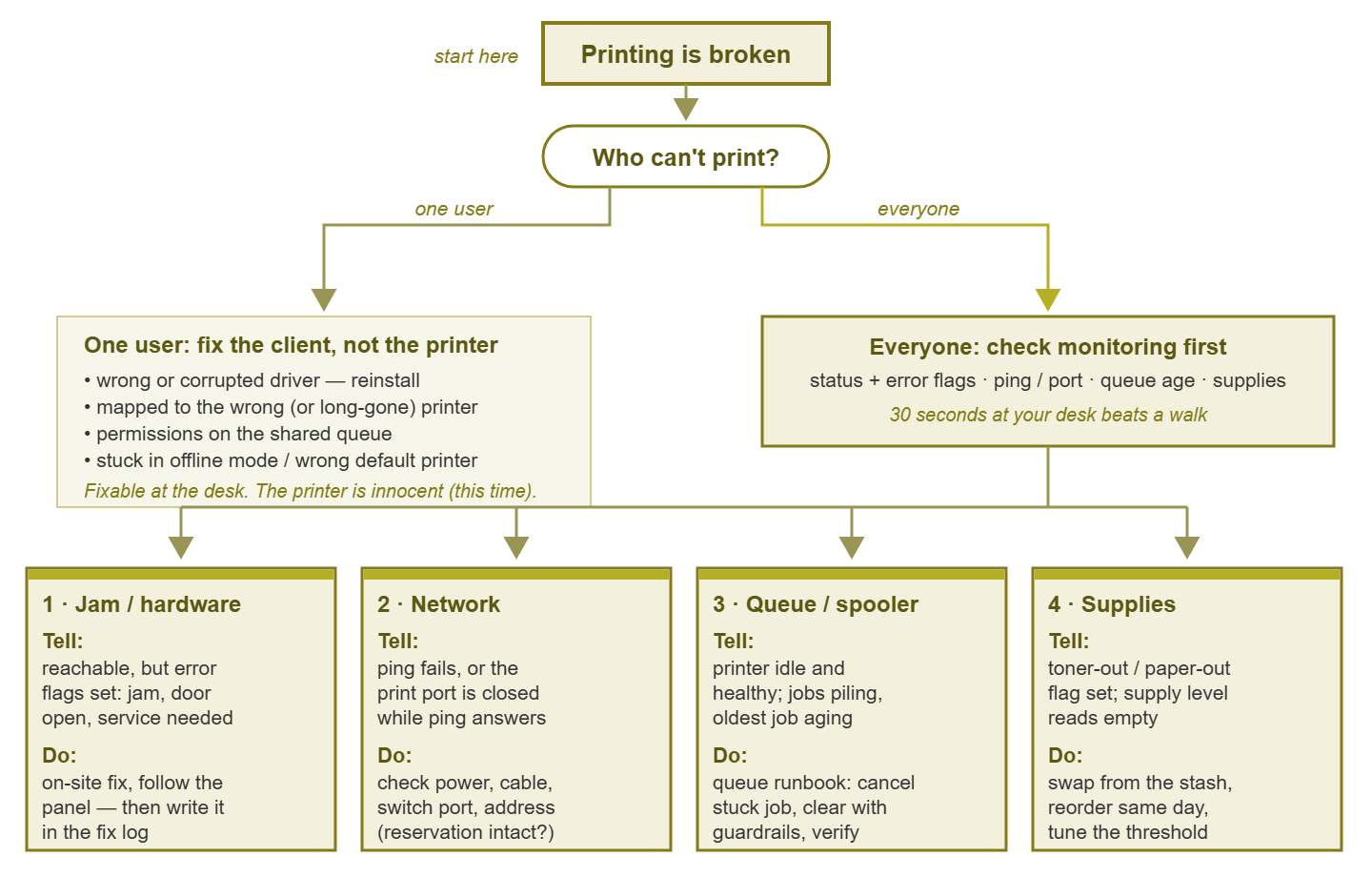
Figure 1: The whole playbook on one page. Two questions and four tells sort nearly every printer incident before you stand up.
Walking the tree: a worked example
Watch the tree run on an ordinary morning. At 8:40 a ticket arrives: "Shipping can't print labels, line is waiting." Deep breath, triage question one: who? The ticket says a whole team; the label printer is a critical-tier device, so this is the everyone branch either way. Question two: what does the monitoring board say? Ping: green. Port 9100: green. Device status: idle, no error flags. Supplies: ribbon at a healthy level. Queue: fourteen jobs, oldest submitted at 8:12 — twenty-eight minutes old and aging.
That is a complete diagnosis in four glances: a healthy, reachable, well-fed printer with a queue that stopped moving is Class 3, queue and spooler. No one visits the printer. On the print server, the queue capture shows the 8:12 job wedged at the front. It was submitted from the shipping supervisor's machine, at triple the size of a normal label batch. Cancel the wedged job; the thirteen behind it start flowing; labels emerge; the line moves. Elapsed time, roughly six minutes, most of it spent typing the all-clear reply.
Two details make this a playbook run and not just a lucky morning. First, nothing was rebooted — the printer was left alone, and the actual failure point got the actual fix. Second, the incident produced two artifacts on its way out. One was a fix log entry ("8:40, LBL-SHIP-02, class 3, oversized job from supervisor's station wedged queue, canceled job"). The other was a follow-up question — what was that job, and will it return? That question is where the next section picks up.
Reboots: medicine or makeup?
Rebooting the printer works often enough that it has become the universal folk remedy, and this playbook will not pretend otherwise. Embedded devices run small, long-lived software that accumulates wedged states; power-cycling clears them. A reboot is legitimate medicine when the tells point at the device's own brain. Those tells include pings-but-port-closed, a control panel that has frozen, or a device wedged after a power event. The reboot must also be applied once, with the evidence captured first, per the tip above.
A reboot is makeup when it is covering the same blemish on a schedule. The printer that needs power-cycling every Monday is not being fixed on Mondays. It is wearing its symptom-mask so well that the underlying fault — a failing controller, a firmware quirk, a network condition it cannot digest — never gets investigated. The habit that separates medicine from makeup costs one line: log every reboot, including the ones that worked. Especially the ones that worked. A logged reboot is a data point; an unlogged reboot is a reboot you will do again. And if you find yourself tempted to automate a recurring reboot, treat that exactly like the spooler-clearing automation in from runbook to automation. In that case, use a guarded runbook with a counter that summons a human when it fires too often. An automated reboot on a timer is not a fix. It is the same unlogged reboot, on a schedule.
At Harbourview Clinic the reception printer was power-cycled every Monday morning for the best part of a year, by whoever arrived first. It worked every time. Nobody logged it, because it worked. When a new technician finally wrote the reboots down, the pattern took two weeks to show. The printer wedged every weekend, when an energy-saving timer cut power to that corner of reception overnight. The printer came back when the power did; its print service did not. The Monday reboot had been treating the printer for a fault that belonged to a timer socket.
The per-printer fix log
Which brings us to the playbook's memory: the fix log. Every incident, one line, kept per printer — in your ticket system's device history, your monitoring tool's notes, or an unglamorous shared sheet. Date, symptom, failure class, what fixed it, minutes spent. The discipline costs less than a minute per incident and buys the one thing individual troubleshooting can never produce: patterns across time.
| Date | Printer | Class | What happened | Fix | Min |
|---|---|---|---|---|---|
| Tue | MFP-3F | Jam | Jam, tray 2, mid-morning | Cleared jam | 15 |
| Tue (next) | MFP-3F | Jam | Jam, tray 2, mid-morning again | Cleared jam | 15 |
| Tue (next) | MFP-3F | Jam | Tray 2, mid-morning. It's always Tuesday | Cleared; opened investigation | 25 |
| Wed | MFP-3F | Jam | Found it: Tuesday = big card-stock mailing, fed from tray 2 with worn rollers | Replaced rollers; moved card stock to bypass tray | 30 |
Read that last row again, because it is the whole argument. Three identical fifteen-minute fixes looked, individually, like bad luck; jams happen. The log turned them into a sentence: the same printer, the same tray, the same jam, every Tuesday. Same printer, same fault, on a rhythm, is never bad luck; something is causing it on a schedule. The log finds card stock on worn feed rollers, a humidity-swollen paper supply near a loading dock door, or month-end's heavy batch hitting a marginal part. It finds these because it remembers what no individual technician, and certainly no rotating cast of them, ever could. The fix log is also, not incidentally, the evidence file for the conversation in the next section.
Retiring a chronic offender
Some printers are not having a bad week; they are having a bad life. The playbook's final duty is knowing when to stop fixing, and the fix log makes that decision arithmetic instead of argument. Total the last stretch of entries for the offender. Add visits times minutes, at what your time is worth; parts and service calls; and the downtime cost to the people standing in front of it. For a critical-tier device, that downtime cost may dwarf everything else. Set that recurring total against the one-time cost of a replacement. And remember the replacement usually arrives with lower per-page supply costs and a warranty. When the repair math loses to the replacement math for the second consecutive review, the machine is telling you something.
Two honest checks keep the math clean. Consult the odometer. The lifetime page counter your monitoring has been recording puts a device's wear in plain numbers. A machine far beyond its class's duty expectations is not going to become young again. And name the sunk-cost trap out loud. "We just put a fuser in it" is a reason people keep failing machines, not a reason the machine will stop failing. The fuser money is spent either way; the only question is whether future Tuesdays go to the same tray 2.
Retirement done right closes the loop with the rest of this series. The replacement conforms to the fleet standard from the consumables guide (one fewer oddball on the spare shelf). It inherits the old device's monitoring checks and reservation and gets a fresh fix log page. The old machine's log gets a final entry, because it earned one.
Where to go next
The playbook in one breath: ask who can't print. Look at the board before you walk. One user means the client; everyone means one of four classes. Each class has a tell you can read from your desk. Reboots are medicine only with evidence and a log entry. The fix log turns incidents into patterns. The patterns tell you when fixing should end. Run it a few times and printer tickets stop being dreaded and start being quick. A formal troubleshooting playbook, for the punchline device. Yes, really. The supporting monitoring lives in the rest of this series: the basics, consumables, queues, and the wider peripheral zoo, all gathered at Printers & Peripherals on the Network.
Put this into practice with SysPeep Monitor
The playbook works best when the four glances are already on one screen. SysPeep Monitor collects printer status, error flags, supply levels, and availability over SNMP. It watches your print server's spooler and disk over WMI. It keeps the history that turns this-Tuesday's jam into a visible pattern. The free trial installs on any Windows machine in minutes — usually less time than one queue clear.
Download Free TrialLearn About SysPeep - All Rights Reserved.