
Visibility Beyond the LAN: What You Can and Can't See for Remote Workers
The ticket says "the VPN is slow again." The person who sent it is at a kitchen table forty minutes away. They use a router they bought at a supermarket and share a line with a teenager streaming something in the next room. Your dashboard is green from end to end, because everything your dashboard can see is fine. You are being asked to fix something in a place you cannot look.
I answered that ticket with "everything looks fine on our end" for longer than I like to admit. It was true every time, and helped nobody. What helped was a map. A remote worker's traffic crosses five segments, and each segment is visible to a different tool, or to no tool at all. Once you know which tool sees which segment, you can sort every complaint into one of three bins. Is it their home network, is it the path in between, or is it us? By the end you will be able to draw the path and name the vantage point for each part. You will also be able to tell your users and your manager honestly what you can and cannot see.
The guide on extending visibility to home offices argues why the home office is your biggest blind spot. This one is about what to do once you accept it.
In this guide
- The five segments of a remote worker's path
- Which tool sees which segment
- The segment-by-visibility table
- Honest limits: what you do not own
- The three questions the model answers
- A worked example: one ticket, three questions
- Setting expectations without making excuses
- Where to go next
The five segments of a remote worker's path
Think of a remote worker's traffic as a commute: the driveway, the neighborhood streets, a regional highway, a stretch of road that belongs to nobody, and finally your parking garage. You own the garage and have a contract with nobody else on the route. Every remote-work problem happens somewhere on that commute, and the first skill is naming the stretch.
Segment 1: The laptop
The device itself includes the processor, memory, and disk, plus the wireless adapter and its driver. It includes the VPN client, the DNS settings in use, and everything else running on it. That ranges from the security scanner to the sixty browser tabs. Slowness that begins here never touches a network. That is exactly why it belongs in a network model: it is the segment most often blamed on all the others.
Segment 2: The home network
Everything between the laptop and the wall socket belongs here. That includes the Wi-Fi link, the router (often also the modem), and every other device sharing it. Think of the television streaming in the next room, the game console, and the neighbor's network shouting on the same channel. The user owns this segment, or their landlord does. The router gets the same administration as the toaster. Its far end is the gateway: the router's inside address, the first hop every packet takes on its way out. Measure the round trip to the gateway and you are measuring this segment and nothing else.
Segment 3: The home ISP
This segment runs from the router's outside port into the internet service provider's network. It includes the access line (cable, fiber, DSL, fixed wireless, or a cellular modem) and the provider's regional network beyond it. The contract is between the user and the ISP; you are not a party to it. This is also where the user's public IP address is assigned. That address identifies the provider. It quietly reveals when someone is on a phone hotspot or a hotel network instead of at home.
Segment 4: The internet
The transit networks between the user's ISP and your edge or the SaaS provider's edge. Nobody you can call owns this segment. It is usually fine. When it is not, the cause is usually a peering point or a routing change that affects a slice of users and clears up on its own.
Segment 5: The edge
The first door you own is your VPN concentrator. That is the box that terminates remote-access tunnels at your office or data center. For traffic that goes directly to cloud applications, the door is the SaaS provider's front door. Beyond your VPN edge lies your normal network, monitored the normal way; beyond the SaaS edge lies the provider's problem. Which road traffic takes depends on the application. The guide on monitoring the VPN and direct paths covers what to watch on each.
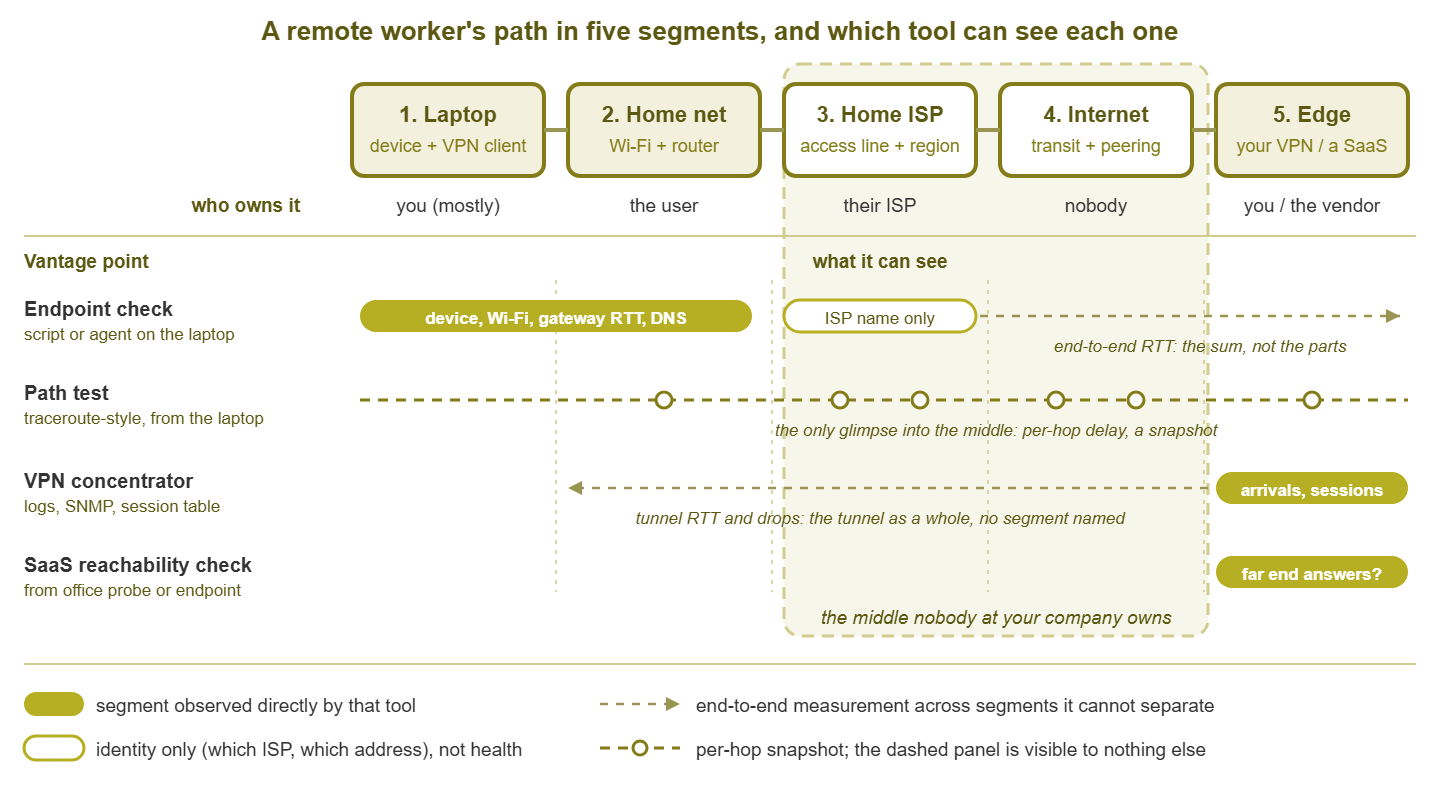
Figure 1: The five segments and who can see them. Solid bars are direct observation; dashed arrows are end-to-end measurements that cannot say which segment added the delay; the shaded middle is visible only to path tests.
Which tool sees which segment
No single vantage point sees the whole commute. There are four partial ones, and the model is the habit of asking, for every number, "where was this measured from, and what can that spot see?" Including the numbers that agree with you.
Endpoint checks: the view from inside the house
A scheduled script or a lightweight agent on the laptop sees segments one through three from the inside. It sees device health, Wi-Fi signal and band, and round trip and packet loss to the gateway. It sees DNS lookup time, whether the VPN client says it is connected, and the public IP address, which names the ISP. It can also time a round trip to your VPN edge or a SaaS front door. That is the sum of every segment, useful but unable to say which segment added the delay. The guide on lightweight endpoint checks describes what to collect and how to do it without becoming spyware.
The VPN concentrator: the view of arrivals
Your VPN edge sees every tunnel that reaches it. It sees which user, from which public address, when the session started, when it dropped and reconnected, and how much data flowed. On many platforms it also sees a per-session round trip. It sees segment five completely and the tunnel as a whole. If one user's tunnel drops every afternoon at three, the edge knows. But it cannot say whether the drop came from Wi-Fi, the ISP, or the internet. It sees nothing about traffic that never enters the tunnel.
SaaS reachability checks: the view of the far end
A synthetic check is a scripted request ("load the login page and time it") run on a schedule from a vantage point you control. From your office or a monitoring probe, it tells you whether the SaaS front door answers and how quickly, independent of any home network. From the endpoint, it tells you the same thing from the user's chair. Neither can see inside the provider. When the question is whether an outage is yours or the vendor's, the us-or-them isolation playbook is the fast way to decide.
Path tests: the only glimpse into the middle
A traceroute-style test sent from the laptop lists each router the packets pass through and the round trip to each. It is the only tool in the model that looks inside segments three and four, with caveats. Routers answer these probes when they have nothing better to do, so a hop can look slow while forwarding real traffic perfectly. The return path may differ. And the result is a snapshot, not a monitor. Use it to find where the delay jumps, not to prove that a hop is broken, and run it occasionally rather than constantly.
Your normal monitoring: everything after the edge
Once the tunnel is terminated, traffic is on your network and your existing checks apply. These include the concentrator's CPU and session count, the office circuit behind it, the switches, the servers, and the application response times. It is the only part of the commute where you can do more than observe, and the only part that answers "is it us?" for certain.
The segment-by-visibility table
Pin this somewhere. Each row is a segment, each column a vantage point, and each cell the most that vantage point can honestly tell you.
| Segment | Who owns it | Endpoint check | VPN edge | SaaS check | Path test |
|---|---|---|---|---|---|
| 1. Laptop | You (issued), the user (operated) | Full: CPU, memory, disk, adapter, VPN client state | Only the session it presents | Nothing | Nothing |
| 2. Home network | The user or their landlord | Good: Wi-Fi signal and band, gateway round trip and loss | Nothing | Nothing | First hop only |
| 3. Home ISP | The ISP, under contract with the user | Identity only: public IP, provider name, hotspot or hotel | Source address only | Nothing | Per-hop glimpse |
| 4. Internet | Nobody you can call | End-to-end round trip only | Nothing | Nothing | Per-hop glimpse |
| 5. VPN edge or SaaS front door | You, or the vendor | Reachability and response time from the seat | Full: sessions, arrivals, drops, throughput | Response from your vantage point | Last hop |
| Beyond the edge | You (or the vendor) | Application response as the user feels it | Handoff to the LAN | Nothing | Nothing |
Read the table by columns: the endpoint column is the only one with something useful in almost every row. That is the whole argument for a small, polite check on remote laptops. Read it by rows: rows three and four hold nothing but a glimpse. Nobody you employ owns the middle.
Honest limits: what you do not own
The model is only useful if you take its limits seriously, because you will be explaining them to people who would rather you did not have any.
- You do not own the router. You cannot log in to it, read its logs, change its channel, or update its firmware; often it belongs to the ISP and the user cannot change much either. The best you will get is a number the user reads off its status page, and a change you talk them through.
- You do not own the ISP. There is no service-level agreement on a residential line and no engineer who will take your call. The user has to call, and what you can give them is evidence: a time, a symptom, and a path test showing where the delay begins.
- You do not own the coffee shop, the hotel, or the airport. Shared Wi-Fi, captive portals, blocked ports, and a hundred strangers on the same access point. When the public IP says "hotel," the reasonable expectation changes from "works like the office" to "works well enough for email."
- You may not fully own the laptop. On a personal device, what you can check and change shrinks to whatever the user agrees to, which is a policy question before it is a technical one.
This is a change of role. On the office LAN you are a mechanic: find the fault, fix it. On the remote path you are a diagnostician and an advocate. Find the segment, tell the user what it means, give them the words to use with their provider, and fix the parts you own. That is a real job, just a different one, and a support process that pretends otherwise sets everyone up for a fight.
Tip: a green dashboard for a remote worker means "the part we own is fine," not "the user is fine." Say the first sentence out loud when you report status, and you will stop telling people with a broken afternoon that everything is working.
The three questions the model answers
The model exists so you can sort a complaint into one of three bins quickly, each with its own evidence, owner, and next step.
Question 1: Is it the home network?
The evidence lives in segment two. It might be a gateway round trip of tens or hundreds of milliseconds instead of a few, or packet loss to the gateway. It might be a weak Wi-Fi signal or an adapter parked on the crowded lower band. Or a complaint might coincide with someone else in the house starting a video stream. The decisive test is the hotspot test: tether the laptop to a phone and try again. If the problem disappears, it lived in the house or the home ISP. The owner is the user, and the next step is a guided fix. The guide on home Wi-Fi versus corporate blame turns that into a conversation that does not make anyone feel accused.
Question 2: Is it the path?
The evidence is a clean segment two with a bad end-to-end number. The gateway round trip is fine, but the round trip to your edge is high or wildly variable. Or loss appears only beyond the first hop in a path test. Or the public IP shows the user somewhere unusual. Corroboration is other users on the same provider reporting the same afternoon. The owner is the ISP or nobody, and the next step is evidence in the user's hands plus a workaround, usually the hotspot.
Question 3: Is it us?
The evidence is at the edge and behind it. It might be tunnels arriving cleanly with normal round trips but an internal application answering slowly. It might be a concentrator running hot or near its session limit. Or the office circuit might be saturated. Or, the strongest signal of all, many users on different providers are complaining at once. The owner is you, and the next step is your normal incident process, plus telling remote users quickly so they stop restarting their routers.
Work the questions in that order because their evidence is cheapest to collect, not because the home network is the most likely culprit. It is tempting to answer the first question with "probably" and stop. Every time you do, it costs a little trust.
At Meridian Parts the help desk closed every remote ticket for three weeks with "please restart your router," and the users did, some of them twice a day. The concentrator had been at its session limit every morning from nine until half past, and its own log said so. Nobody asked question three, because question one had been answered with "probably." The review called the three weeks "a period of elevated router restarts." The sessions came back that afternoon; the department's trust took the rest of the quarter.
A worked example: one ticket, three questions
Suppose a remote analyst reports that video calls freeze most afternoons and that "the VPN is slow." Her laptop runs a five-minute endpoint check that sends a summary line to your collector. The line from the middle of a freeze:
14:05  wifi=-71dBm band=2.4GHz  gw_rtt=48ms gw_loss=6%
       dns=210ms  vpn=up vpn_rtt=79ms  isp=cable-provider
Read it segment by segment. The Wi-Fi signal is weak and the adapter has fallen back to the crowded lower band: a segment-two clue. The gateway round trip is forty-eight milliseconds with six percent loss. The gateway is in the same house and should answer in a couple of milliseconds with no loss. That is segment two, and it is not subtle. The DNS lookup is slow too, but a lossy first hop makes everything after it slow. So that is a symptom rather than a second problem. The tunnel round trip is seventy-nine milliseconds.
Now do the subtraction. The tunnel round trip includes the gateway round trip. So the router-to-edge path accounts for roughly seventy-nine minus forty-eight: about thirty-one milliseconds. That is unremarkable for a home line to an office in the same region. Segments three through five look ordinary; the trouble is inside the house. You ask her to plug into the router with a cable during the next freeze. The next afternoon's line, wired, reads:
14:10  wired=1Gbps  gw_rtt=2ms gw_loss=0%
       dns=18ms  vpn=up vpn_rtt=33ms  isp=cable-provider
The gateway number collapsed to two milliseconds with no loss, the tunnel round trip fell to thirty-three, and the calls stopped freezing. The path portion is still about thirty-one milliseconds: nothing on the path changed. The whole problem was the last few meters of wireless, most likely a neighbor's network or the microwave, which shares the band and was never consulted. You did not touch the router, the ISP, or the concentrator; you needed one number from inside the house and the discipline to read it before guessing.
Setting expectations without making excuses
The model is also a communication tool, and the people who most need it will never read a traceroute: your users and your manager. Write down, in one page, what your team can see, what it cannot, and what happens in each case.
A good version says: "We can tell you which part of your connection is having trouble and what to do about it. We fix the parts we own. For the parts we do not own, we give you the evidence to take to your provider, and a workaround while you wait." It replaces "everything looks fine on our end," which is true and infuriating, with a diagnosis and a next step, which is true and useful.
With management, the model turns a vague request for "better remote support" into a short, fundable list:
- Step 1: Draw the five-segment path for your own environment, naming your VPN edge and the SaaS applications that bypass it.
- Step 2: Put a small, documented, consented endpoint check on remote laptops, so segment two stops being a guess.
- Step 3: Monitor the VPN edge properly: sessions, CPU, per-user tunnel health, and the office circuit behind it.
- Step 4: Run SaaS reachability checks from the office and from a few endpoints, so the far end has its own number.
- Step 5: Write the three questions and their evidence into the help-desk script, so first-line support sorts tickets instead of forwarding them.
- Step 6: Decide the hardware policy in advance: when the company ships a better router or a wired adapter, rather than arguing ticket by ticket.
Together these turn "we can't see anything out there" into "we can see the three things that matter," which is the honest ceiling for a network you do not own.
Tip: keep one reference laptop of your own on a home connection running the same endpoint check as everyone else. When a remote user's numbers look odd, you will have a known-good line to compare against, measured the same way.
Where to go next
The whole model is five segments, four vantage points, and one habit: asking where a number was measured from. Use it and "everything looks fine on our end" gives way to which segment is not fine, who owns it, and what happens next. It is the only kind of fine a person at a kitchen table can use. Lightweight Endpoint Checks for Remote Laptops fills in the endpoint column. Home Wi-Fi vs. Corporate Blame turns the first question into a decision table and a kind conversation. VPN vs. Direct covers the two roads out of the house, and A Remote-Worker Support Playbook assembles all of it into an intake script and a set of fixes. The pillar page, Monitoring Remote & Home-Office Workers, holds the whole series.
Put this into practice with SysPeep Monitor
The segments you own are the ones you can actually fix, and they deserve proper monitoring before anyone's kitchen does. SysPeep Monitor watches your side of the remote path from one Windows machine. It discovers your VPN edge, firewall, switches, and servers, and polls their health over SNMP and WMI. It alerts you when the concentrator runs hot or the office circuit fills up. Lightweight remote probes cover the branch sites your users also work from. The free trial installs in minutes.
Download Free TrialLearn About SysPeep - All Rights Reserved.