
New-MAC Alerting: Knowing When Something New Plugs In
The most basic question in rogue device detection is embarrassingly simple: did something new just join my network? Not "is it dangerous," not "who owns it" — just "is this a device I have seen before, or not?" If you can answer that question reliably, every other rogue-detection technique becomes easier, because you are no longer searching a haystack. You are looking at the one straw that arrived this morning.
Your network already keeps the answer. Every switch remembers which hardware addresses it has seen on which ports. Every router remembers which addresses are using which IPs; your DHCP server writes down every lease. Nobody is reading those records, and that is the whole gap. This guide closes it. By the end you will know the four places a "who is on the network" list comes from. You will know how to build the known-device list you compare against and how the poll-diff-alert loop works. And you will know how to keep the noise down. That is the part that decides whether anyone keeps reading the alerts.
In this guide
- What a MAC address tells you, and what it does not
- Four sources for "who is on the network"
- Pulling a switch MAC table over SNMP
- Building the known-device list
- The comparison loop: poll, diff, alert
- OUI lookups: a hint, not proof
- Noise control
- Alert wording that someone can act on
- Where to go next
What a MAC address tells you, and what it does not
A MAC address (Media Access Control address) is the identifier every Ethernet or Wi-Fi network card uses at the lowest layer of the network. It is six bytes long, written as twelve hexadecimal characters, like 00:1a:2b:3c:4d:5e. A frame is the basic unit of traffic on a local network. When a device sends one, it carries the sender's MAC. Every switch it passes through takes a note: this MAC lives on this port. That note is the entire basis of switching, and, conveniently, of new-device detection.
Two facts about MACs shape everything that follows. First, a MAC address only travels within one local network (one VLAN, one broadcast domain). Once traffic crosses a router, the original MAC is gone. So switch tables tell you about devices on that switch's VLANs, not about the whole enterprise. Your detection loop has to run per VLAN. Second, a MAC is not proof of identity. It can be changed in software, and modern phones deliberately generate a random one per wireless network. It is a fingerprint, not a passport — strong enough to say "I have not seen this before," too weak to say "this is definitely a printer."
Four sources for "who is on the network"
You can build a current-devices list from four different bookkeeping systems. And they are worth knowing side by side because each sees something the others miss.
| Source | What it gives you | What it misses | Best for |
|---|---|---|---|
| Switch MAC address tables (SNMP) | MAC, switch, port, VLAN — the physical location | Devices idle longer than the aging timer (typically minutes); anything behind a router | The primary source: nothing can send a frame without appearing here |
| ARP tables on routers and firewalls | MAC to IP mapping per VLAN | Port location; devices that have not talked off-VLAN recently | Catching static-IP devices; tying a MAC to an address |
| DHCP lease logs | MAC, IP, hostname, vendor-class hint, time of arrival | Static-IP devices; devices that never request a lease | Identity hints: the hostname and vendor class often name the device |
| Wireless client lists (controller) | MAC, SSID, AP, signal, sometimes device type | Wired devices; anything on a rogue AP rather than yours | Wireless arrivals; correlating with the wired side |
The switch MAC table is your foundation because it is the only source that gives you a place. An alert that says "new device on VLAN 20" sends someone on a scavenger hunt. An alert that says "new device on sw-floor2-01 port Gi1/0/17, labeled Rm 214 jack B" sends someone to a room. The other three sources are enrichment. ARP adds the IP. DHCP adds the hostname. And the wireless list tells you whether it came in through the air.
Pulling a switch MAC table over SNMP
Switches expose their forwarding table through the standard bridge MIB. A MIB is the dictionary that names SNMP data; the SNMP Monitoring guides cover the mechanics. The table you want maps each learned MAC to a bridge port number. Here is a walk of it against a switch at 192.168.1.2 with a read-only community of labread:
snmpwalk -v2c -c labread 192.168.1.2 1.3.6.1.2.1.17.4.3.1.2

.1.3.6.1.2.1.17.4.3.1.2.0.26.43.60.77.94 = INTEGER: 17
.1.3.6.1.2.1.17.4.3.1.2.216.59.190.2.11.8 = INTEGER: 17
.1.3.6.1.2.1.17.4.3.1.2.244.6.105.18.200.3 = INTEGER: 24
.1.3.6.1.2.1.17.4.3.1.2.60.151.14.200.65.2 = INTEGER: 48
Three things to decode. The six numbers after the object name (0.26.43.60.77.94) are the MAC address written in decimal, one byte at a time. Converting to hexadecimal gives 00:1a:2b:3c:4d:5e. The integer on the right is a bridge port number. This is not the same as the interface index you use elsewhere in SNMP. A second table (1.3.6.1.2.1.17.1.4.1.2) maps bridge ports to interface indexes. From there you can pull the port name and description. And on many switches the basic bridge table is per-VLAN. In that case, you can walk the VLAN-aware version of the table (under 1.3.6.1.2.1.17.7.1.2.2, which includes the VLAN ID in the index). Or use the switch's per-VLAN community convention. Vendor documentation will tell you which; a quick walk of both will tell you faster.
Port 48 in that output is the uplink to the core switch, which is why it will show hundreds of MACs. Everything on the far side of that link appears there. Your comparison loop must know which ports are uplinks and ignore them, or you will alert on every device in the building. The interface description usually makes uplinks obvious (Uplink to sw-core-01), and if it does not, the MAC count will.
Building the known-device list
A new-MAC alert is a comparison, and a comparison needs a baseline: the known-device list, every MAC you have accounted for. If you already maintain a device inventory, this list is a view of it. Building a Device Inventory covers fields, seeding, and reconciliation. The MAC-focused list described here should live inside that inventory rather than beside it. If you do not have a device inventory, the known-device list is a fine place to start one.
Each entry needs enough to make an alert answerable at a glance:
- MAC address — the key. One row per MAC, so a laptop with wired and wireless adapters gets two rows.
- Device type — desktop, laptop, printer, phone, AP, camera, sensor. Coarse categories are fine.
- Owner — a person or a team. "Facilities" is a valid owner; "unknown" is a valid owner that means "investigate later."
- Expected location — the switch, port, and VLAN it normally appears on. For laptops, "any staff port" is honest; for printers and servers, be specific. A printer's MAC appearing on a different floor is itself worth a look.
- First seen and last seen — maintained automatically by the loop.
- Notes — "randomizes MAC," "sleeps nightly," "lab gear, appears irregularly."
Seed it by running your collection once, treating everything you find as provisionally known, then spending a week identifying the surprises. What Makes a Device Rogue gives you the categories for sorting what turns up. The list only stays useful if it is maintained. So decide up front who adds a row when a device is deployed. Make "add the MAC" a line on the deployment checklist rather than a favor.
The comparison loop: poll, diff, alert
With sources and a baseline, the loop itself is three steps, repeated forever.
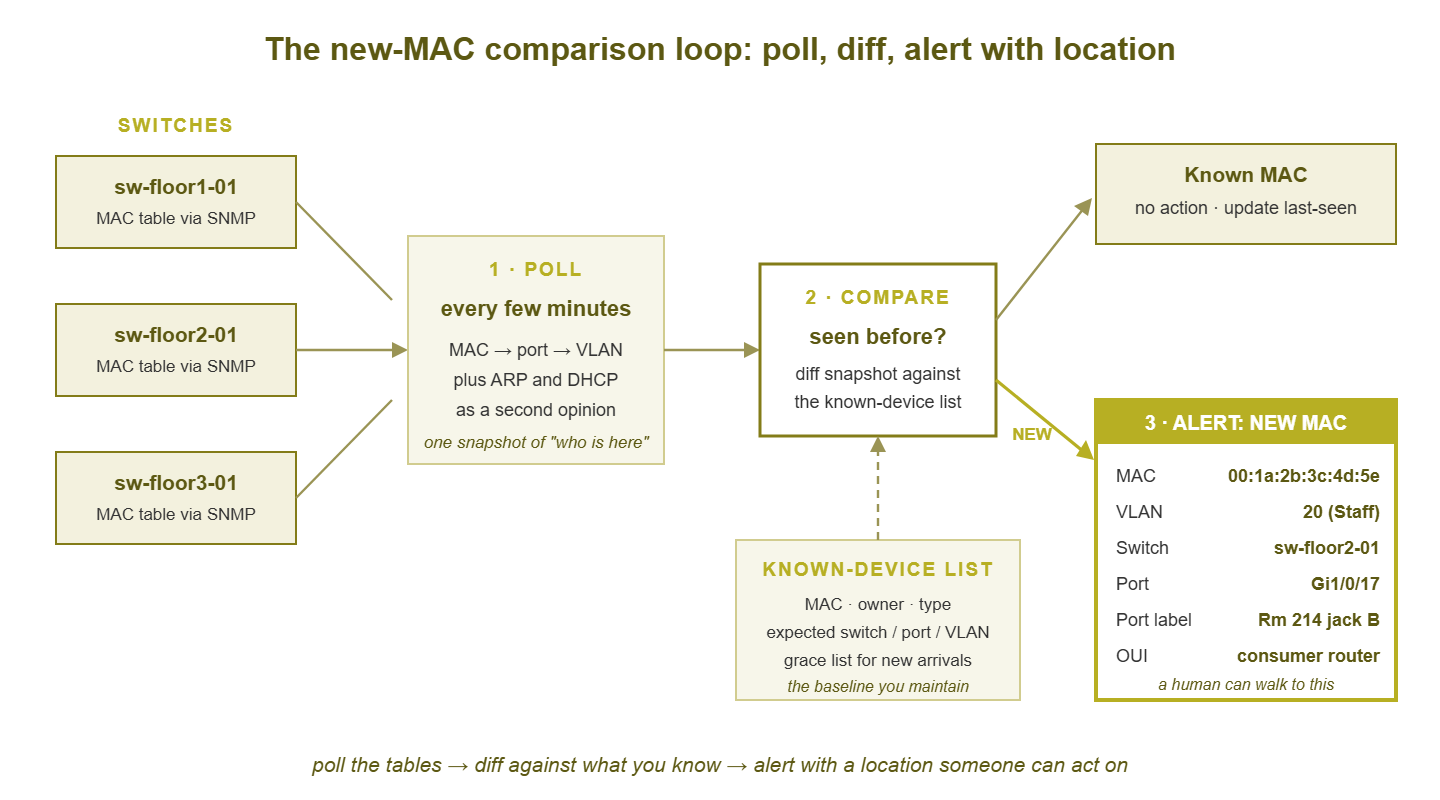
Figure 1: The loop. Switches supply MAC-to-port-to-VLAN facts; the comparison against the known-device list decides what is new; the alert carries a location a human can walk to.
1. Poll
Every few minutes, collect the MAC table from every access switch, tag each entry with switch, port, and VLAN, and discard uplink ports. Optionally pull the ARP table from the router serving each VLAN and the latest DHCP leases. If you do, join them on the MAC so each entry also carries an IP and a hostname where available. The polling interval matters less than you might think; a device that plugs in and stays will be caught on the next pass. What matters is that the interval is shorter than the switch's MAC aging timer, so the switch has not forgotten a device before you look.
2. Diff
Compare the snapshot to the known-device list, per VLAN. There are three outcomes. The MAC is known and in its expected location (update last-seen, done). The MAC is known but somewhere unexpected (a printer on the wrong floor — a low-priority note, not an alarm). Or the MAC is not in the list at all (new). A monitoring platform with a script or custom-check facility can run this diff. So can a short script and a text file, which is genuinely how many teams start.
3. Alert
For each new MAC, raise one alert containing everything you know. Include the MAC, vendor hint, VLAN, switch, port, port description, and any IP or hostname from ARP or DHCP. Then add the MAC to the list with an owner of "unknown" and a first-seen timestamp. That way, you do not alert on it again next pass. The alert is a request for a human to classify the device, and the list entry is where the answer gets written down.
Here is what a run of the diff step might print, from a script that stores yesterday's snapshot and compares against it and the known list:
$ ./macdiff.sh --known known-devices.csv --snapshot today.csv

Polled 6 switches, 2,140 MAC entries, 2,088 after removing uplinks
Known and in place ......... 2,079
Known, unexpected place ....     7   (see moved.txt)
NEW ........................     2

NEW  00:1a:2b:3c:4d:5e  VLAN 20  sw-floor2-01  Gi1/0/17  "Rm 214 jack B"
     vendor hint: consumer networking gear   dhcp host: RT-AC-ROUTER
NEW  9c:8e:cd:11:22:33  VLAN 20  sw-floor1-01  Gi1/0/03  "Rm 105 desk"
     vendor hint: laptop maker   dhcp host: LT-JMORALES
Two new devices, and already they read differently. The second is almost certainly a new hire's laptop on a desk port — the hostname carries a name, the vendor hint says laptop. The first is a consumer router on a staff VLAN with a factory hostname. Same mechanism, very different urgency, and the difference came entirely from the enrichment fields.
OUI lookups: a hint, not proof
The first three bytes of a MAC address are the OUI (Organizationally Unique Identifier), a prefix assigned to the manufacturer of the network chip. Public lists map prefixes to vendor names. A MAC starting with a prefix registered to a printer maker is probably a printer. One registered to a consumer-router maker is probably a consumer router. This is the single most useful enrichment in your alert, because it turns "unknown hardware" into "probably a phone" at zero cost.
Treat it as a hint. The OUI identifies who made the network chip, which is often not who made the device. So the vendor name can point at a component maker you have never heard of. And there are two ways the hint fails outright. A device can present any MAC it likes, so a deliberately placed device can wear a printer's prefix. And phones, tablets, and increasingly laptops generate a randomized MAC per wireless network. You can spot one because the second hexadecimal digit is 2, 6, A, or E. That marks the "locally administered" bit. A randomized MAC has no meaningful OUI at all. Print the hint, label it a hint, and never let it close an investigation on its own.
Tip: keep the OUI list local. Looking up vendors by querying an external service on every alert makes your detection loop depend on someone else's website. Download the list, store it with your script, and refresh it on a schedule.
Noise control
A new-MAC alert that fires forty times a day is a new-MAC alert nobody reads, and the whole system dies quietly within a month. Noise control is not an afterthought; it is what makes the loop survivable. The main sources of noise, and the fix for each:
Guest and visitor VLANs
Every visitor, every personal phone joining guest Wi-Fi, is a new MAC. Alerting on them is pointless. Exclude guest VLANs from per-device alerts entirely. If you want visibility, summarize: "guest VLAN: 34 new MACs today" as a daily line, not 34 alerts. The exception is a wired arrival on a guest VLAN port that should be wireless-only. That is a real signal and deserves its own rule.
Phones and MAC randomization
A corporate phone that randomizes its MAC is a new device every time it forgets a network. On staff wireless, you have two choices. Use your mobile management tooling to turn randomization off for the corporate SSID (most platforms allow it). Or accept that wireless staff VLANs get the summary treatment, and reserve per-device alerts for wired ports. Wired ports are where rogues plug in; that is where the precision matters.
Devices that sleep and reappear
Printers, conference-room displays, and lab equipment go dark for hours or days, age out of every table, and then return. If your loop compares only against "seen last poll," each return is a new device. That is why the comparison is against the known-device list, not the previous snapshot. A known printer reappearing is silent; a known printer reappearing on the wrong switch is a note. Keep the list, not just the diff.
The grace list for new hires and deployments
When five laptops are being deployed this week, you know in advance that five new MACs will appear. A grace list — MACs (or a count, or a port range) pre-approved for a window — keeps those arrivals from paging anyone. The deployment technician adds the MACs to the grace list. When they show up, the loop matches them and moves them straight into the known list with the right owner. Anything that arrives outside the grace list still alerts. This is also the mechanism that saves you at eight on a Monday, when a whole department's new equipment lights up at once.
Flapping and multi-homed devices
A laptop that docks and undocks appears and disappears on the same port all day; a device with two network cards appears twice. Neither is new after the first sighting, so with a list keyed on MAC they go quiet on their own. If they do not, your list is being reset somewhere.
Alert wording that someone can act on
The difference between a useful new-MAC alert and a useless one is almost entirely in the text. A useful alert lets the reader decide, in under a minute and without opening another tool, whether to shrug, walk, or escalate. That means it must carry the location, the identity hints, and a suggested next step. Here is a shape that works:
Subject: NEW DEVICE on VLAN 20 (Staff) - sw-floor2-01 Gi1/0/17 - Rm 214 jack B

A MAC address not in the known-device list was seen at 08:42.

  MAC ............ 00:1a:2b:3c:4d:5e
  Vendor hint .... consumer networking gear (OUI - a hint, not proof)
  Randomized? .... no
  VLAN ........... 20 (Staff)
  Switch / port .. sw-floor2-01 / Gi1/0/17
  Port label ..... Rm 214 jack B (desk)
  Other MACs on this port now: 3 (port normally has 1)
  IP (ARP) ....... 10.20.0.143
  DHCP hostname .. RT-AC-ROUTER
  First seen ..... today 08:42

Not on the grace list. Likely: a consumer router on a desk port.
Next step: see Rogue Device Response, step 1 (verify) and step 2 (locate).
Notice the line about other MACs on this port. A new MAC on a port that now hosts three is a different animal from a new MAC on a port that hosts one. Computing that count from the same table you already polled is free. That count is the single best predictor that the new device is a switch or an access point rather than a laptop. Notice, too, that the alert states its own uncertainty: the vendor hint is labeled as a hint, and "likely" is a guess. Alerts that overclaim get ignored the first time they are wrong.
Route the alert by VLAN and time. New devices on server VLANs or infrastructure ports should interrupt someone immediately, at any hour. Nothing new should appear there without a change ticket. New devices on staff VLANs during business hours can go to a queue reviewed a couple of times a day. New devices on staff VLANs at three in the morning are back to interrupting someone. Encode those routes in your alerting rules rather than in a person's judgment, because the person is asleep at three in the morning.
Where to go next
You now have the whole mechanism. MAC tables from switches give you place. ARP and DHCP give you address and identity hints. The wireless controller tells you what came in through the air. A maintained known-device list is the baseline. The poll-diff-alert loop finds what is new. OUI lookups turn hex into a plausible device type. Noise control keeps the alerts rare enough to be read. That means guest VLAN summaries, randomization awareness, comparing against the list rather than the last snapshot, and a grace list for planned arrivals.
Each new-MAC alert is a question, and the rest of this topic answers it. When the alert says "three MACs on a port that had one," Finding Rogue Access Points tells you how to confirm what is behind it. If you would rather the switch refused unknown devices instead of merely reporting them, Port Security and 802.1X as Detection Signals covers that step and its lockout risks. And when it is time to walk to Rm 214, Rogue Device Response takes it from there. The full set is on the Rogue Device Detection pillar page.
Put this into practice with SysPeep Monitor
The poll step of this loop is exactly the kind of scheduled SNMP collection monitoring software exists to do. SysPeep Monitor auto-discovers your switches and their interfaces. It polls them over SNMP on the schedule you choose. It turns what comes back into alerts through thresholds, dependencies, and rules designed to keep the noise down. The free trial installs on any Windows machine in minutes.
Download Free TrialLearn About SysPeep - All Rights Reserved.