
OIDs and MIBs Demystified
If you have run even one snmpwalk, you have met them. Long dotted numbers like 1.3.6.1.2.1.2.2.1.8.3 are called OIDs (object identifiers). Dictionary files called MIBs (Management Information Bases) turn those numbers into names like ifOperStatus.3. The snmpwalk tutorial introduced them just enough to get you walking. This guide is the promised deep dive.
It is worth the dive, because OIDs and MIBs are the address system of everything SNMP will ever tell you. Once the tree makes sense, you stop copying mystery numbers from forum posts and start deriving them. You will know why every OID you touch starts with the same four numbers. You will know what a MIB file actually says inside and how a table cell gets its address from a column and a row. You will also know a repeatable workflow for finding the exact OID for any fact you want to monitor. That works even on gear you have never seen before.
In this guide
- The tree, from the very top
- The two neighborhoods that matter: mib-2 and enterprises
- What a MIB file actually contains
- Loading MIBs: where they live and how tools find them
- Scalars, tables, and the art of the index
- Finding the OID you need: a repeatable workflow
- Common confusions, resolved
- A pocket reference: the ten addresses worth keeping
- Where to go next
The tree, from the very top
An OID is a path through one single, worldwide tree of numbered branches. Not one tree per device — the tree, a global registry shared by every standards body and vendor on earth. Every branch is numbered. Someone, somewhere, is responsible for handing out the numbers underneath it. Reading an OID left to right is walking that tree from the root downward, one numbered turn at a time, until you arrive at a single fact.
This explains the first thing every newcomer notices: every OID you will ever poll starts with 1.3.6.1. Those four numbers are four turns. First is iso (1), a top branch managed by the international standards organization. Next is org (3), its space for other organizations. Then comes dod (6), the branch assigned to the US Department of Defense, whose research funding built the early internet. Finally, there is internet (1), the corner of that branch handed to the internet community. History froze the path in place. Now 1.3.6.1 is simply the internet's street address in the global tree — a country code you dial without thinking about it.
One level further down, the internet branch splits into a handful of children. Two of them are where you will spend essentially your whole SNMP life. The first is mgmt (2), which leads to the standard objects every device is supposed to share. The other is private (4), which leads to each vendor's own space. (Others exist — an experimental branch, protocol plumbing — but you can ignore them for years at a stretch.)
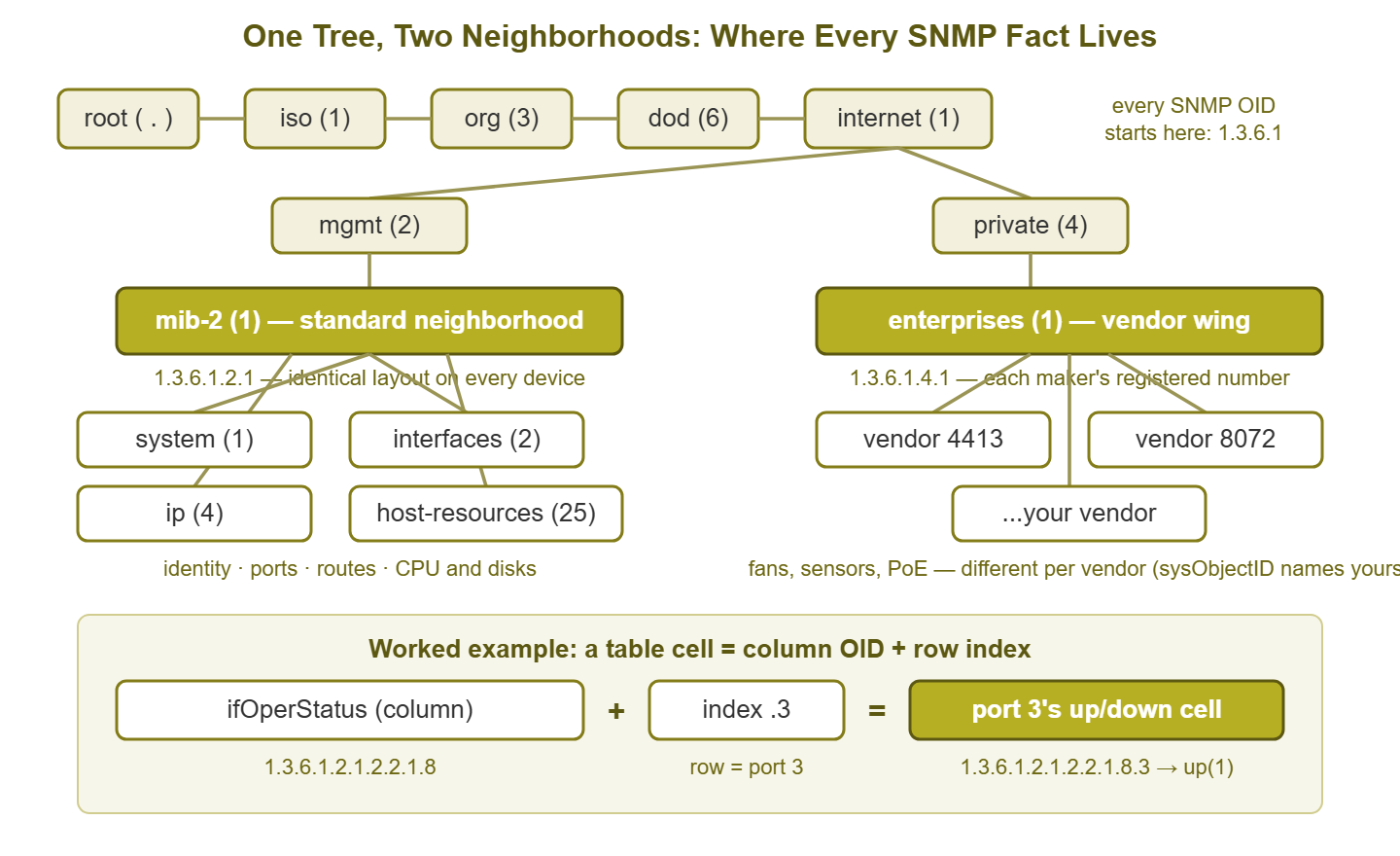
Figure 1: One tree, two neighborhoods. Standard facts live under mib-2 (1.3.6.1.2.1), identical across vendors; device-specific facts live under enterprises (1.3.6.1.4.1), in each vendor's registered branch. The inset shows how a table cell gets its address: column OID + row index.
The two neighborhoods that matter: mib-2 and enterprises
mib-2, at 1.3.6.1.2.1, is the standard neighborhood: a published, agreed layout of the facts almost every networked device should expose. Its power is sameness. sysUpTime lives at the same address on a firewall, a printer, and a thirty-dollar switch. That is why one monitoring configuration can poll a mixed fleet. The streets you will visit most:
- system (1.3.6.1.2.1.1) — the "about me" drawer: description, uptime, name, location, contact.
- interfaces (1.3.6.1.2.1.2) — the per-port table: names, states, traffic counters. (Its modern extension with 64-bit counters lives nearby at
1.3.6.1.2.1.31.) - ip (1.3.6.1.2.1.4) — addresses, routing, ARP neighbors.
- host-resources (1.3.6.1.2.1.25) — for things that are more computer than switch: CPU load, memory, storage, running software.
- Specialty wings for whole device families, like the standard UPS objects (1.3.6.1.2.1.33) and the printer objects (1.3.6.1.2.1.43).
enterprises, at 1.3.6.1.4.1, is the private neighborhood: every vendor's own wing of the tree. Each company that wants one registers a number with the central internet numbering authority and receives, say, branch 4413. Everything under 1.3.6.1.4.1.4413 is then theirs to organize however they like. This is where the interesting device-specific facts live: fan speeds, temperature sensors, PoE power budgets, hardware health, features the standards never imagined. A device even tells you which wing to visit. The standard object sysObjectID (at 1.3.6.1.2.1.1.2.0) answers with an OID pointing into its maker's enterprise branch. That is the tree politely citing itself.
The trade-off between neighborhoods is the theme of practical SNMP work: mib-2 is predictable but generic; enterprises is rich but different on every vendor. You need both, and MIB files are what make the second one navigable.
What a MIB file actually contains
A MIB is a plain text file written in a formal, machine-readable notation. It is two things at once: a dictionary (names, types, and human descriptions for objects) and a map (where each object sits in the tree). Open one in a text editor. Past the header boilerplate you will find a long series of entries shaped like this one, lifted from the standard interfaces MIB:
ifDescr OBJECT-TYPE
    SYNTAX      DisplayString (SIZE (0..255))
    MAX-ACCESS  read-only
    STATUS      current
    DESCRIPTION
        "A textual string containing information about the
        interface. This string should include the name of
        the manufacturer, the product name and the version
        of the interface hardware/software."
    ::= { ifEntry 2 }
Read it line by line, because every MIB entry you ever open will rhyme with this one. ifDescr OBJECT-TYPE declares an object and its name. SYNTAX is the data type — here a display string up to 255 characters. Elsewhere you will see the counters, gauges, and integers you met in the walk tutorial, sometimes with their allowed values spelled out. An entry like INTEGER { up(1), down(2) } is exactly where the "up(1)" translations in walk output come from. MAX-ACCESS says what you may do with it: read it, write it, or (for bookkeeping objects) neither. STATUS says whether the object is current or has been deprecated by a newer alternative.
DESCRIPTION is the treasure: an actual English explanation of what the value means and how to interpret it. It is written by the people who defined the object. It is frequently better documentation than the vendor's own manual. And the last line, ::= { ifEntry 2 }, is the map part: it places ifDescr as child number 2 of its parent ifEntry. Notice that the file never states the full dotted number. MIBs define positions relative to parents. Your tools assemble the absolute path by chaining definitions together. That is also why one MIB file can depend on others: it imports the parents it builds under. That detail matters in a moment.
One misconception to retire early: MIB files are not installed on devices and do not add capabilities to anything. The device answers numeric OIDs regardless. MIBs load on your side — the management station — purely to translate numbers into names, decode enumerations, and hand you descriptions. A missing MIB never hides data; it just makes the data harder to read.
Loading MIBs: where they live and how tools find them
On a typical Linux management box, MIB files sit in a system directory (commonly /usr/share/snmp/mibs) plus a personal one (~/.snmp/mibs). The tools search that path for whatever modules a command needs. The option -m ALL tells them to load everything they can find. The walk tutorial covers the one-time setup that enables the standard set. Getting vendor MIBs is a routine you will repeat for every new device family:
- Fetch: search the vendor's support site for your model plus "MIB." Vendors publish them as free downloads, usually a zip containing many files. Take the whole bundle, because the files import from each other.
- Drop: copy the files into
~/.snmp/mibs(or your system MIB directory). No compiling, no restart — they are read on demand. - Verify: ask
snmptranslateto prove the new names resolve before you trust them anywhere else.
The verification loop looks like this, using a standard object as the example. The same commands work for any vendor name once its MIB is in place:
# Name -> number: does the tool know this object now?
snmptranslate -IR -On ifHCInOctets
.1.3.6.1.2.1.31.1.1.1.6

# Full details, including the DESCRIPTION text and tree position
snmptranslate -Td IF-MIB::ifOperStatus
IF-MIB::ifOperStatus
ifOperStatus OBJECT-TYPE
  -- FROM       IF-MIB
  SYNTAX        INTEGER { up(1), down(2), testing(3), ... }
  MAX-ACCESS    read-only
  STATUS        current
  DESCRIPTION   "The current operational state of the interface..."
::= { iso(1) org(3) dod(6) internet(1) mgmt(2) mib-2(1)
      interfaces(2) ifTable(2) ifEntry(1) 8 }
That -Td output is the whole guide in miniature: the dictionary entry and the map path, assembled for you. When translation fails after adding vendor files, the usual cause is a missing dependency. The vendor MIB imports definitions from another file you did not copy. The error message names the module it cannot find. Go back to the bundle (or the vendor site) for that file, drop it in the same directory, and try again.
Scalars, tables, and the art of the index
Objects in the tree come in two shapes, and telling them apart explains most of the "why does this OID have extra numbers on the end?" confusion.
A scalar exists exactly once per device — there is only one system name, one uptime. To poll a scalar you take its object OID and append .0. The definition of sysName lives at 1.3.6.1.2.1.1.5, and the actual value sits at 1.3.6.1.2.1.1.5.0. Think of the .0 as "instance zero, the only one there is." Forgetting it is the classic cause of a puzzling No Such Instance reply on a get.
A table exists once per thing — per port, per disk, per sensor. Tables nest three levels deep in the tree: the table, then a row template ("entry"), then the columns. The interfaces table runs ifTable (1.3.6.1.2.1.2.2) → ifEntry (...2.2.1) → columns like ifDescr (...2.2.1.2) and ifOperStatus (...2.2.1.8). And here is the rule that unlocks it all: a cell's address is the column OID with the row's index appended. Port 3's operational status:
1.3.6.1.2.1.2.2.1.8       the column:  ifOperStatus
                    .3     the row:     interface index 3
--------------------------------------------------------
1.3.6.1.2.1.2.2.1.8.3     the cell:    port 3's up/down state
This also explains walk output ordering: a walk visits the tree in numeric order. So it returns all of column 2 (every port's name), then all of column 8 (every port's status) — column by column, not row by row. And it explains how facts about the same port connect across columns and even across tables. Index 3 means the same physical interface wherever it appears. That is exactly how you paired names with counters in the walk tutorial.
One gentle heads-up for later: not every table indexes rows with a small integer. Some use richer keys — an address table, for instance, indexes rows by the IP address itself. So the "index" appended to the column is four numbers long. Other tables glue several values together into multi-part indexes. When you meet an OID with a long, strange tail, don't panic. The front is still just a column. Everything after it is the row's key, spelled in dots.
Finding the OID you need: a repeatable workflow
"How do I monitor X on device Y?" is the eternal question, and the answer is a workflow, not a lookup. It works the same for a standard fact or an exotic vendor sensor:
- 1. Guess the neighborhood. Is X something every device has (interfaces, CPU, storage)? Start under mib-2. Is it hardware-specific (fan, PSU, temperature)? Expect the vendor's enterprise branch, and fetch their MIBs first.
- 2. Walk the candidate subtree and skim. A walk of
1.3.6.1.4.1.<vendor>(or the relevant mib-2 street) shows what this device actually implements, which beats any document's claims. Save it to a file and search the file for promising words. - 3. Search the descriptions. The MIB directory is a corpus of documentation; search it. Something as blunt as
grep -il temperature ~/.snmp/mibs/*finds which files talk about the thing you want. Runningsnmptranslate -Tdon each candidate prints the authoritative description. - 4. Confirm the address both ways.
snmptranslate -IR -On <name>for the number, andsnmptranslate <number>back to the name. That way, a typo can't send you monitoring the wrong object. - 5. Poll it and provoke it.
snmpgetthe OID a few times and make the value move. Send a print job and watch the page counter. Download a file and watch the octets climb. A value that responds believably to reality is an OID you can trust in a dashboard.
Two vendor-documentation habits round this out. Many vendors publish a "MIB reference" listing their most useful objects with descriptions — skim it once per platform and you will save hours. And when a vendor's knowledge base answers a monitoring question, it usually names the exact OID. Run it through step 4 before believing it, since articles sometimes describe a different model's tree.
Tip: keep a plain text file of OIDs you have personally verified per device model, one line each: name, number, what it means, date checked. It becomes the most-consulted document you own, and pays for itself the first time a colleague asks "how did you graph that?"
Common confusions, resolved
The same fact at two addresses. Interface byte counts appear both as ifInOctets (32-bit, in the original interfaces table) and ifHCInOctets (64-bit, in the extension table at 1.3.6.1.2.1.31). They are twins, not rivals. The 64-bit types arrived later — alongside SNMP v2c, as the versions guide explains. The old objects were kept so existing tools would not break. Prefer the HC (high capacity) twins whenever the device offers them; the 32-bit ones wrap far too quickly on fast links.
Deprecated but still answering. A STATUS deprecated marking in a MIB means "a better alternative exists," not "this stopped working." Devices keep implementing deprecated objects for many years for compatibility. Using one is fine when it is all a device offers — just note the modern replacement so you migrate when you can.
Defined is not implemented. A MIB describes what could exist; each device implements a subset. Asking for a defined-but-absent object gets you No Such Object. The cure is always the same: walk the parent subtree and monitor what is actually there, not what the paperwork promised.
Vendor quirks. Expect the same fact in both neighborhoods: a standard CPU object and a richer vendor one. The vendor version is often more accurate. Expect placeholder answers like a temperature of 0 from a sensor the model doesn't have. And expect occasional oddities like counters that reset when a line card restarts. When a number looks wrong, suspect the source before the math. The troubleshooting guide is the symptom-by-symptom companion for exactly these moments.
A pocket reference: the ten addresses worth keeping
You never need to memorize OIDs — that is what MIBs are for. But a handful recur so often that knowing them by sight makes you faster everywhere. These ten cover most day-to-day monitoring:
| What | Where | Why you will use it |
|---|---|---|
| system group | 1.3.6.1.2.1.1 | Identity, uptime, location — the first walk on any device |
| sysUpTime | 1.3.6.1.2.1.1.3.0 | The reboot detector; sudden low values explain many mysteries |
| sysObjectID | 1.3.6.1.2.1.1.2.0 | Points into the maker's enterprise branch — tells you whose MIBs to fetch |
| ifDescr | 1.3.6.1.2.1.2.2.1.2 | Port names, and the index numbers everything else keys on |
| ifOperStatus | 1.3.6.1.2.1.2.2.1.8 | Port up/down — the most monitored value in networking |
| ifHCInOctets / ifHCOutOctets | 1.3.6.1.2.1.31.1.1.1.6 / .10 | 64-bit traffic counters — the raw material of bandwidth graphs |
| ifAlias | 1.3.6.1.2.1.31.1.1.1.18 | The human-set port label ("uplink to core") — gold for readable dashboards |
| hrProcessorLoad | 1.3.6.1.2.1.25.3.3.1.2 | CPU load on hosts and host-like devices |
| hrStorageTable | 1.3.6.1.2.1.25.2.3 | Disk and memory capacity and use |
| enterprises | 1.3.6.1.4.1 | The doorway to every vendor's private wing |
Where to go next
Here is the mental model to keep: one worldwide tree, with 1.3.6.1 as the internet's fixed prefix. The standard neighborhood is mib-2, where every device looks alike. The vendor wing is enterprises, where the exotic facts live. MIB files are the dictionary-plus-map that translate it all on your side. Cell addresses are built from column plus index. With that model and the five-step finding workflow, "can we monitor X?" changes from a research project into twenty minutes of walking and translating. To put it into practice, the snmpwalk tutorial is the hands-on companion. The rest of the SNMP Monitoring guides build from here — versions and security, traps versus polling, and what to do when numbers look wrong.
Put this into practice with SysPeep Monitor
Knowing your way around the OID tree is the skill. Polling it every few minutes forever is the chore. SysPeep Monitor auto-discovers your devices and their interfaces. It collects the health and performance values over SNMP on schedule. It turns them into dashboards, maps, and alerts in one web console. The free trial installs on a single Windows machine and starts discovering in minutes.
Download Free TrialLearn About SysPeep - All Rights Reserved.